> ## Documentation Index
> Fetch the complete documentation index at: https://docs.linkup.so/llms.txt
> Use this file to discover all available pages before exploring further.
# Meeting Prep
> Build a meeting prep agent using Linkup inside Xpander
## Overview
Linkup integrates with [Xpander.ai](http://xpander.ai/) to give your agents access to real-time web data. This tutorial walks through how to build a meeting preparation agent that uses that data to generate useful briefings.
## Configuration steps
1. Go to the Agents tab in Xpander.
2. Click “New Agent”
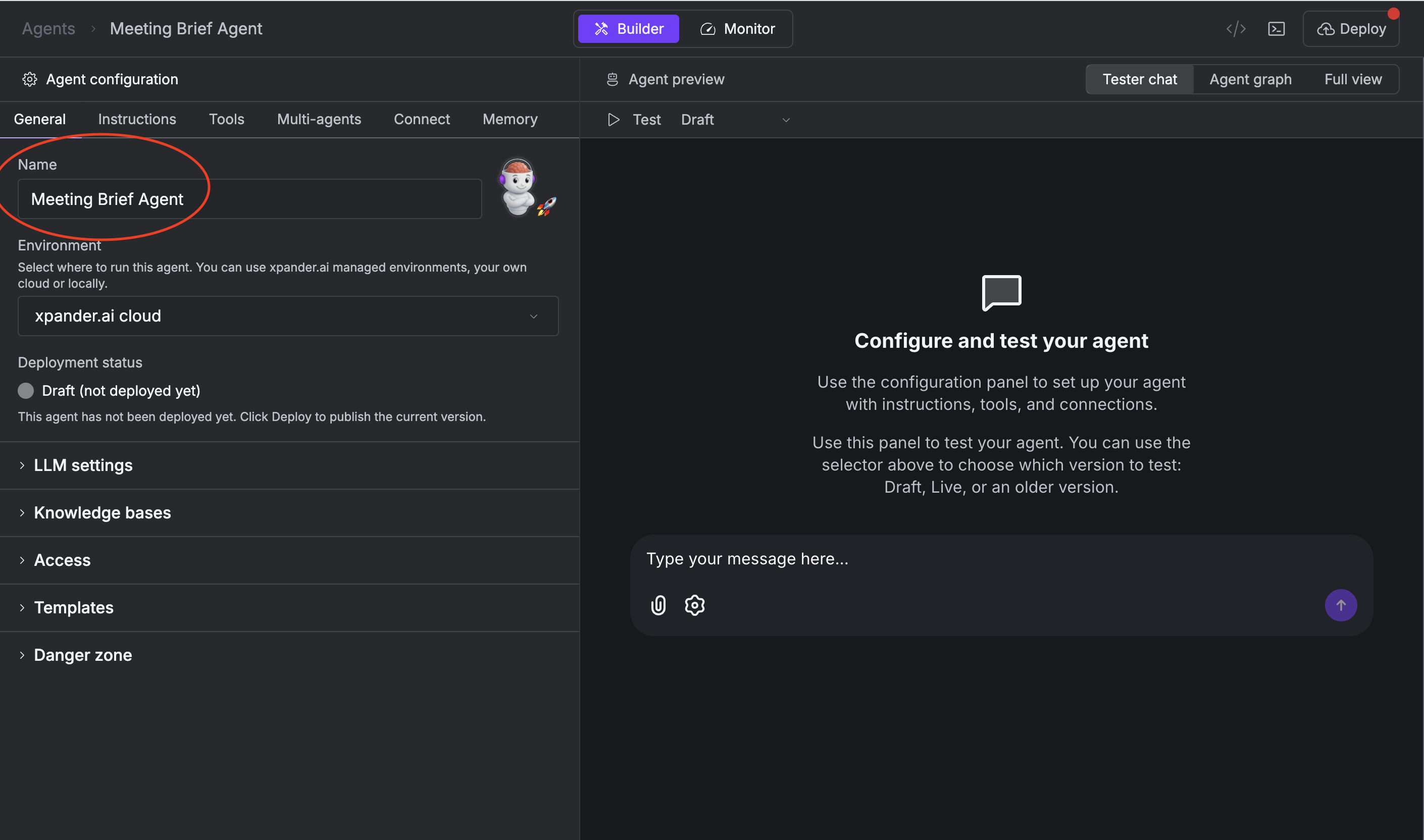
3. Name it something like “Meeting Brief Agent”
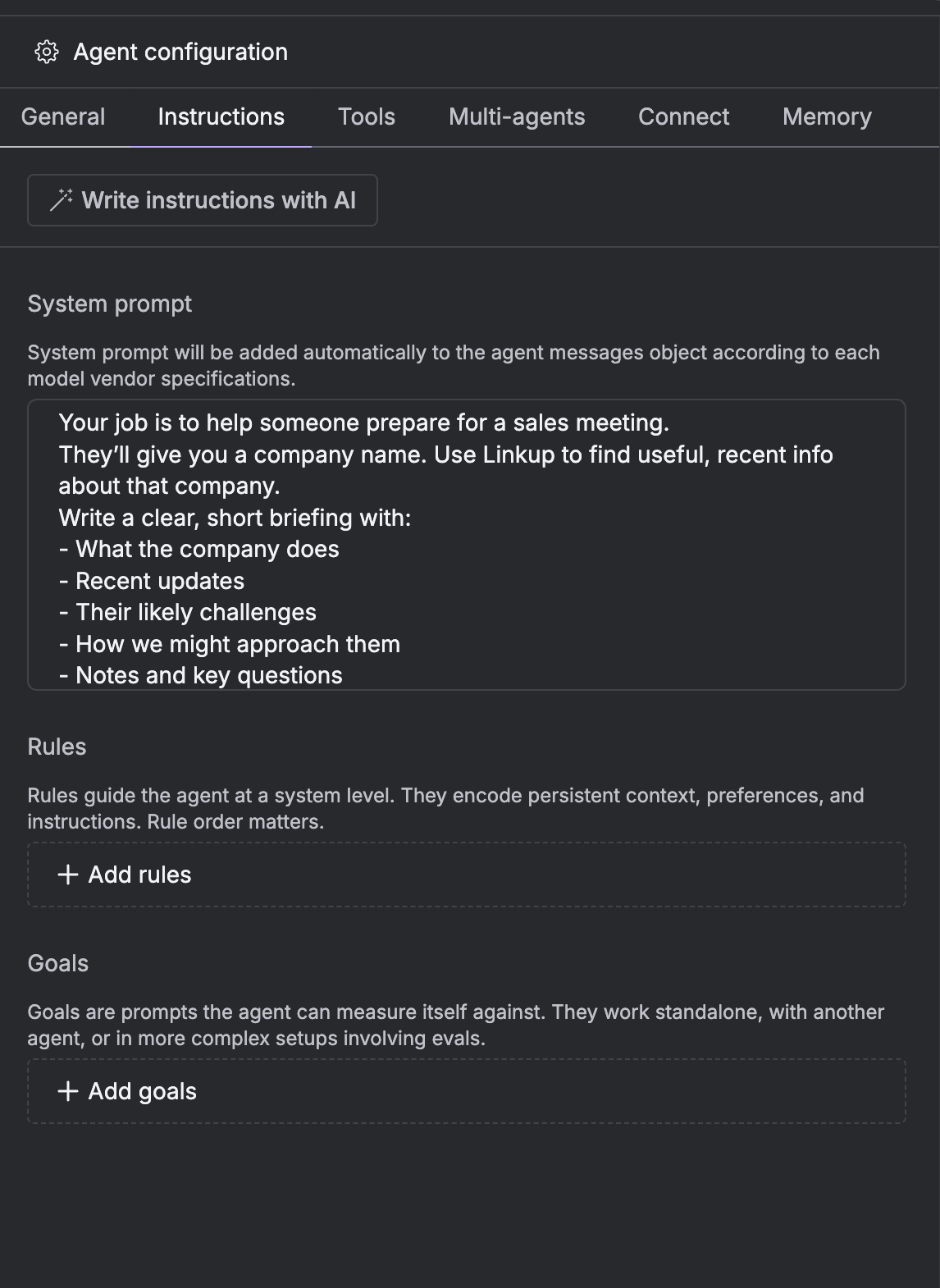
 4. Paste the following into the **Instructions** section:
```
Your job is to help someone prepare for a sales meeting.
They’ll give you a company name. Use Linkup to find useful, recent info about that company.
Write a clear, short briefing with:
- What the company does
- Recent updates
- Their likely challenges
- How we might approach them
- Notes and key questions
```
4. Paste the following into the **Instructions** section:
```
Your job is to help someone prepare for a sales meeting.
They’ll give you a company name. Use Linkup to find useful, recent info about that company.
Write a clear, short briefing with:
- What the company does
- Recent updates
- Their likely challenges
- How we might approach them
- Notes and key questions
```
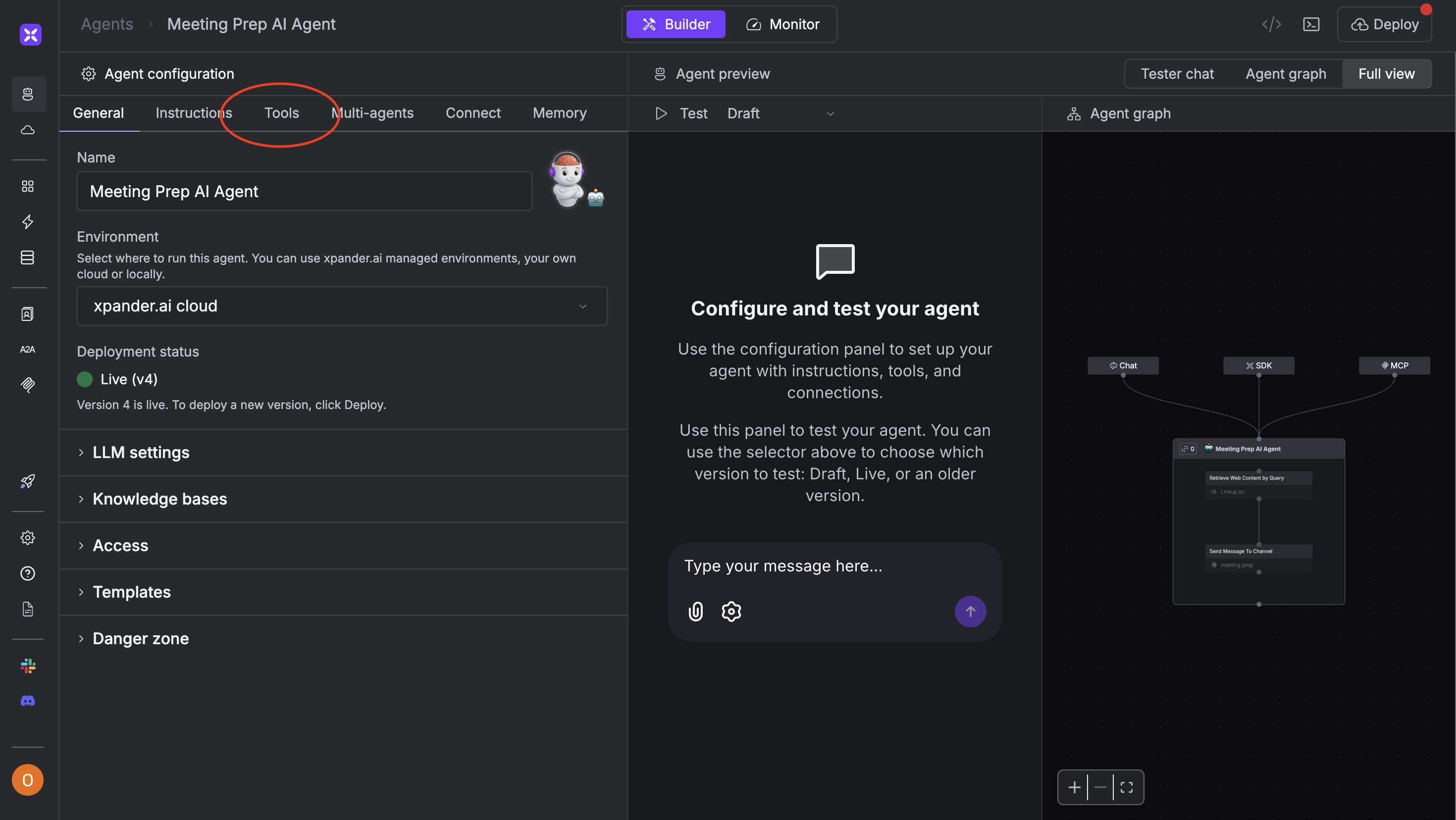
 1. Go to the Tools section in the agent builder
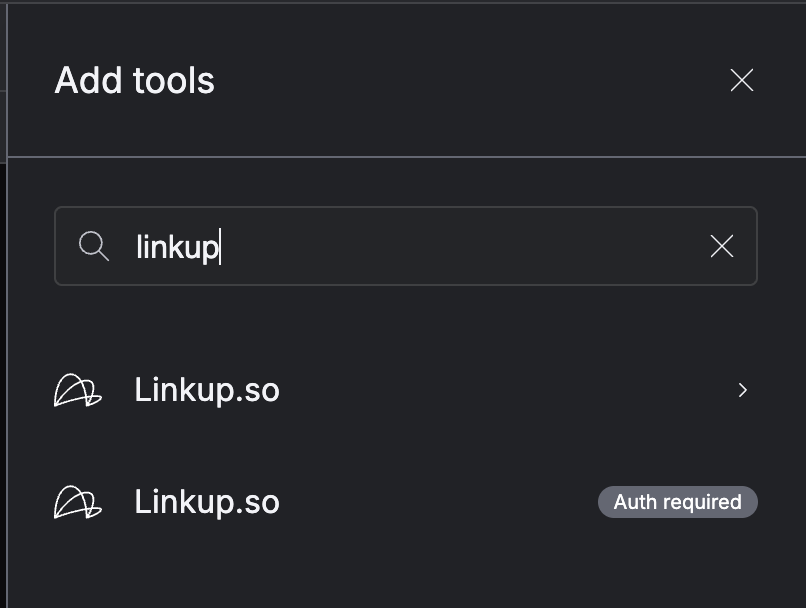
 2. Click “Add Tool” and select **Linkup.so**
 3. Choose the “Retrieve Web Content by Query” option
 4. Under “Prompt Input Mapping”, link the user's input (e.g. company name) to the Linkup query
**Query Tip:**
```
Give me recent updates, funding info, hiring trends, product launches, and blog posts about {{company}}
```
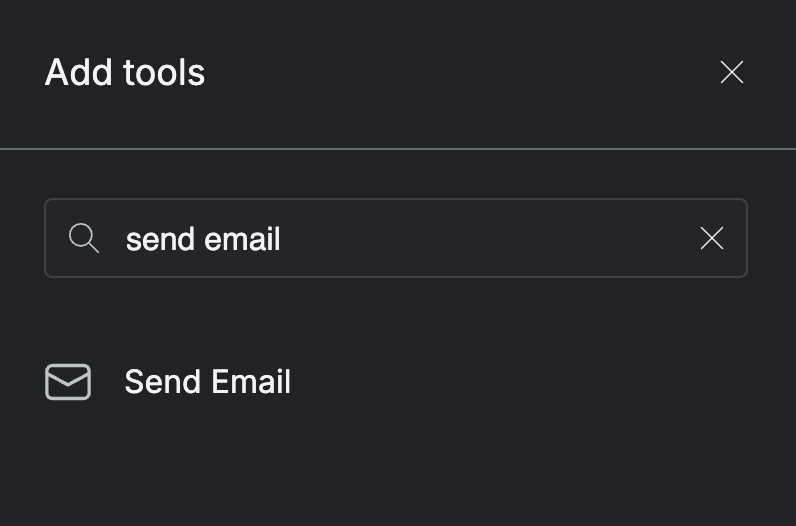
1. Click the "+" button in the agent editor
2. Select **Send Email** tool
3. You don’t need to wire it to previous steps
4. Make sure your prompt includes:
```
Always email the final output to [email]
```
4. Under “Prompt Input Mapping”, link the user's input (e.g. company name) to the Linkup query
**Query Tip:**
```
Give me recent updates, funding info, hiring trends, product launches, and blog posts about {{company}}
```
1. Click the "+" button in the agent editor
2. Select **Send Email** tool
3. You don’t need to wire it to previous steps
4. Make sure your prompt includes:
```
Always email the final output to [email]
```
 1. Click the "+" button again
2. Select **Send Slack Message**
1. Click the "+" button again
2. Select **Send Slack Message**
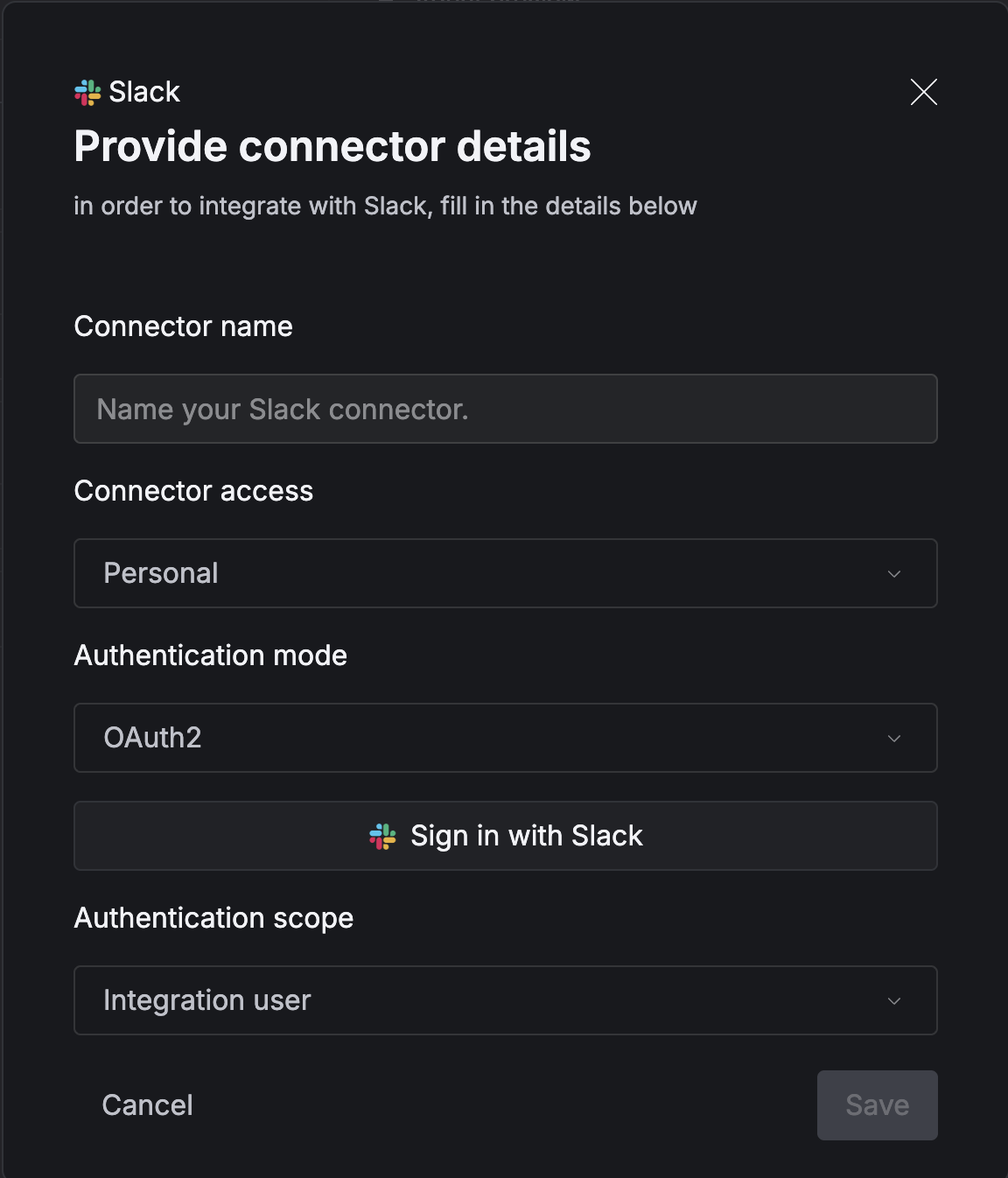
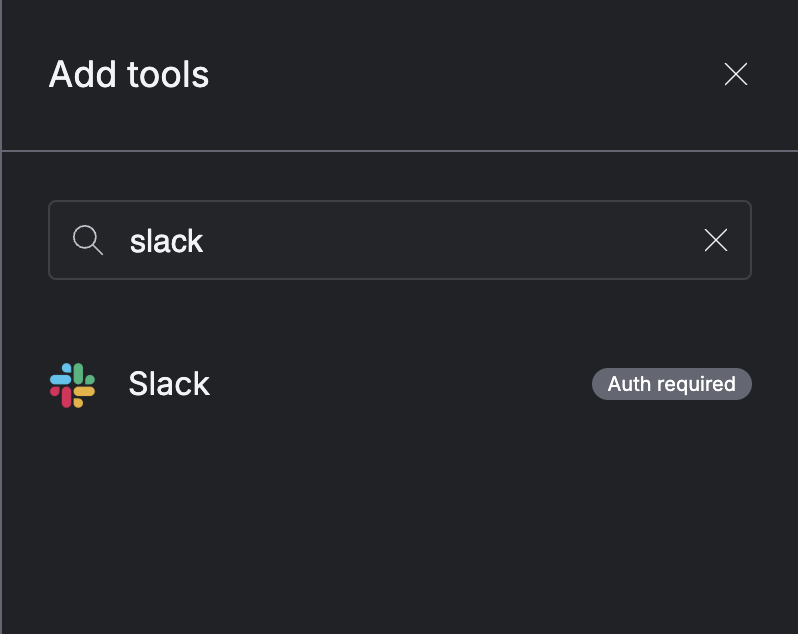 3. Configure credentials with OAuth2 and log in to Slack
 4. Include this in the prompt:
```
Also send the meeting briefing to the configured Slack channel
```
Company: Airtable
Name: Daniel Kim
Title: Director of Product Strategy
Email: [daniel.kim@airtable.com](mailto:daniel.kim@airtable.com)
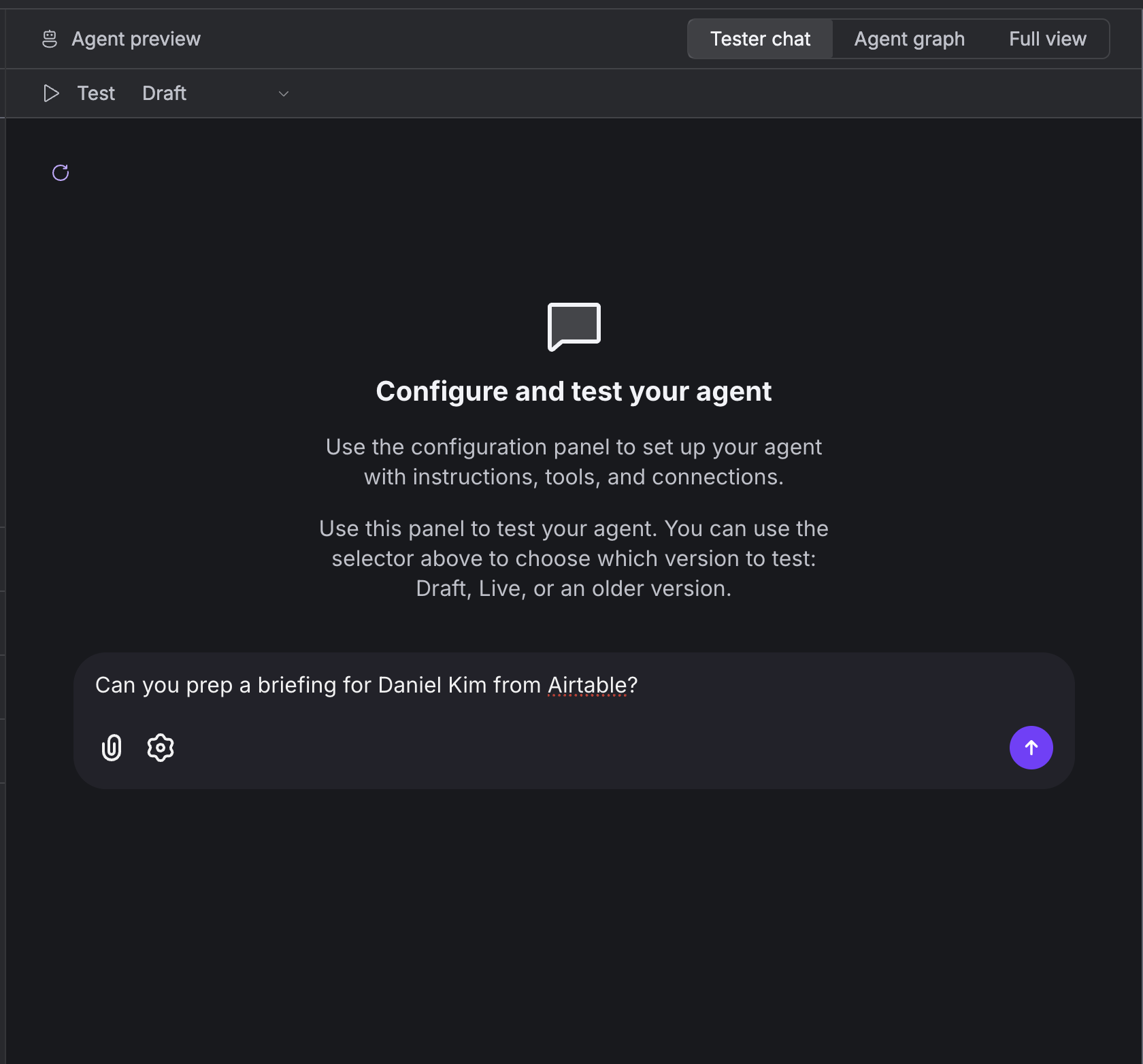
Type into chat:
> Can you prep a briefing for Daniel Kim from Airtable?
4. Include this in the prompt:
```
Also send the meeting briefing to the configured Slack channel
```
Company: Airtable
Name: Daniel Kim
Title: Director of Product Strategy
Email: [daniel.kim@airtable.com](mailto:daniel.kim@airtable.com)
Type into chat:
> Can you prep a briefing for Daniel Kim from Airtable?
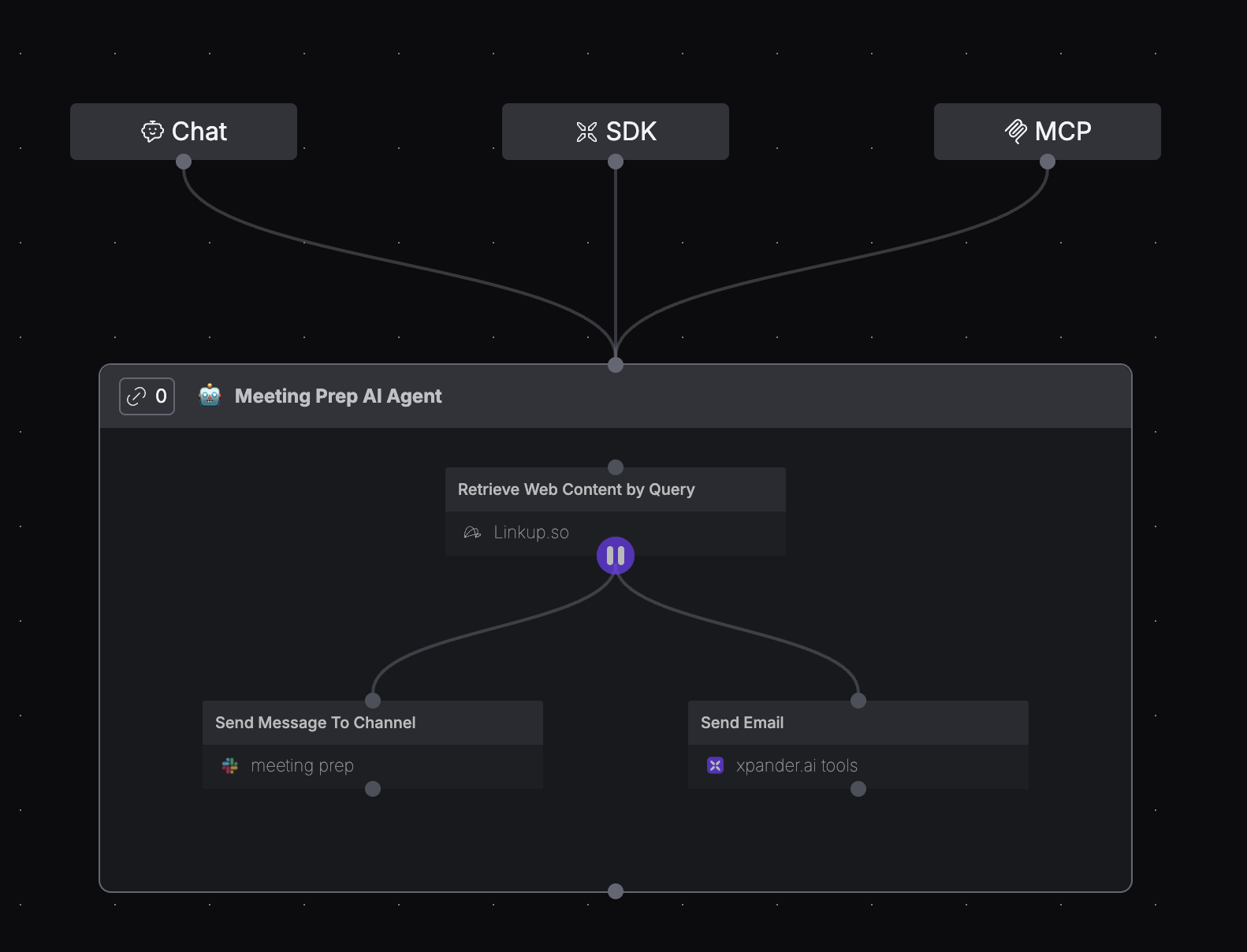 You are all set to use Linkup to build an intelligent meeting prep agent in Xpander. Visit the [Concepts](/pages/documentation/endpoints/search/overview) page to learn more about how Linkup works.
**Need help?** Email `support@linkup.so`, ping us on [Discord](https://discord.com/invite/9q9mCYJa86), or [talk to us](https://calendar.app.google/zNUZz7RxgMMk9pKW7).
You are all set to use Linkup to build an intelligent meeting prep agent in Xpander. Visit the [Concepts](/pages/documentation/endpoints/search/overview) page to learn more about how Linkup works.
**Need help?** Email `support@linkup.so`, ping us on [Discord](https://discord.com/invite/9q9mCYJa86), or [talk to us](https://calendar.app.google/zNUZz7RxgMMk9pKW7).