> ## Documentation Index
> Fetch the complete documentation index at: https://docs.linkup.so/llms.txt
> Use this file to discover all available pages before exploring further.
# Clay
> Enrich Companies in Clay using Linkup Web Search
## Overview
You can connect a [Clay](https://clay.com) table to web search through Linkup, which can be used as an enrichment provider to get contextual information from the internet for your prospects and leads.
Below is a short Youtube Tutorial:
## Installation
### 1. Open Clay
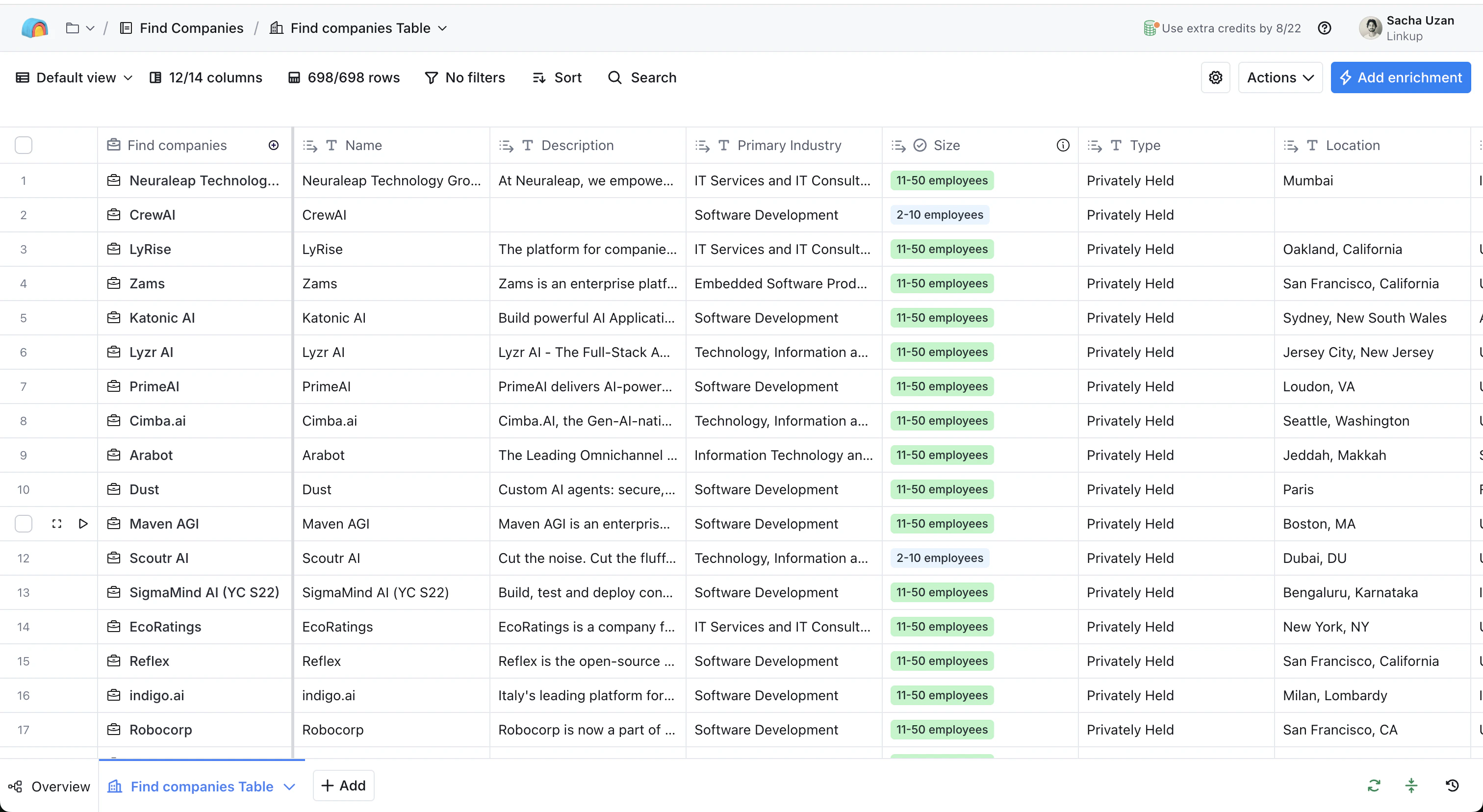
Go to your Clay account and navigate to the table you would like to enrich.
### 2. Add HTTP API Enrichment
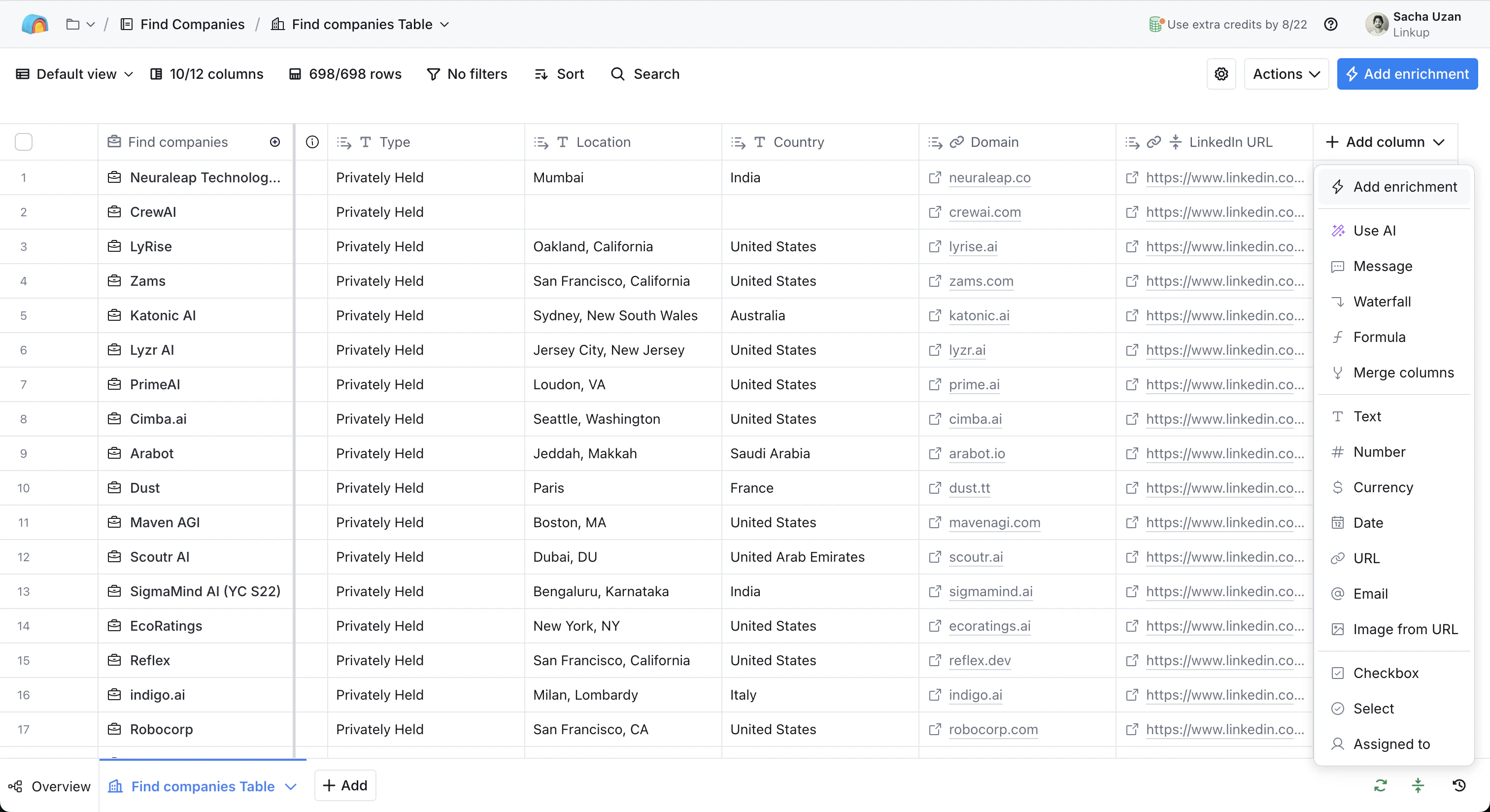
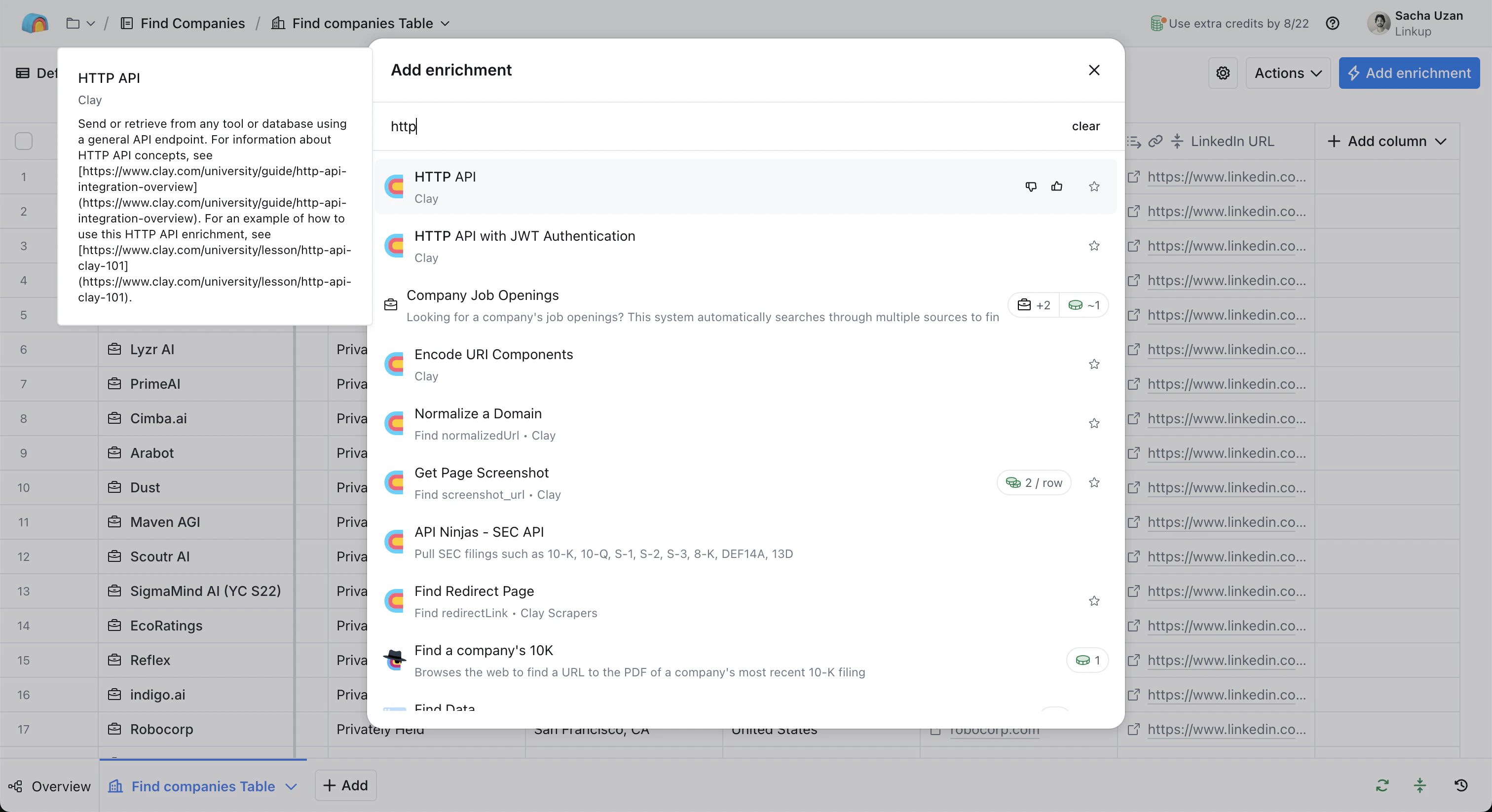
Click on "Add enrichment" and search for HTTP API.
### 3. Configure the HTTP API to call the Linkup API
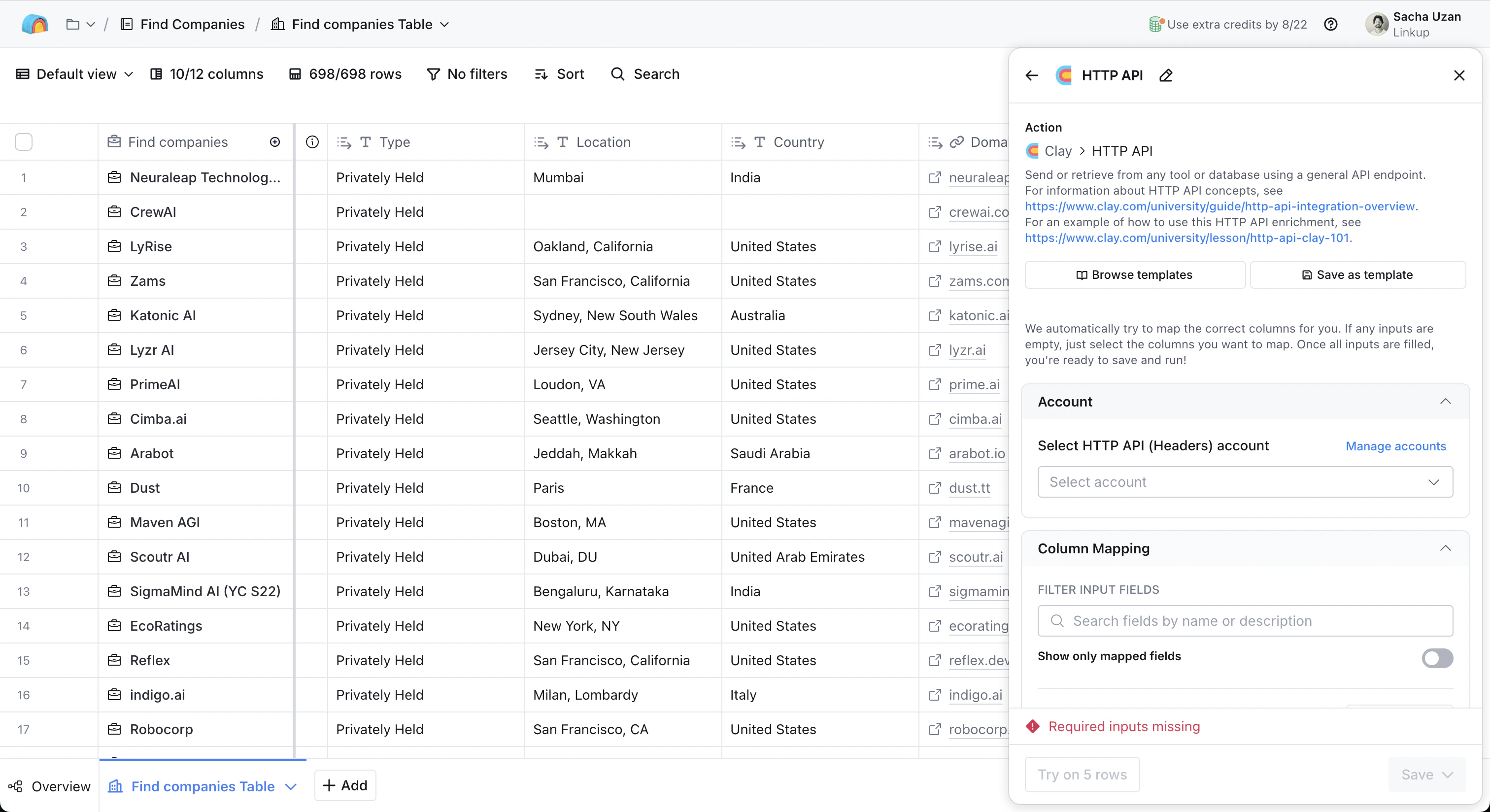
After clicking on HTTP API, you will see the configuration sidebar opening.
There are a few things we'll need to configure:
* **Endpoint & Header** (think of it as the address and name you would put on an envelope)
* **Body** (the actual content of the letter)
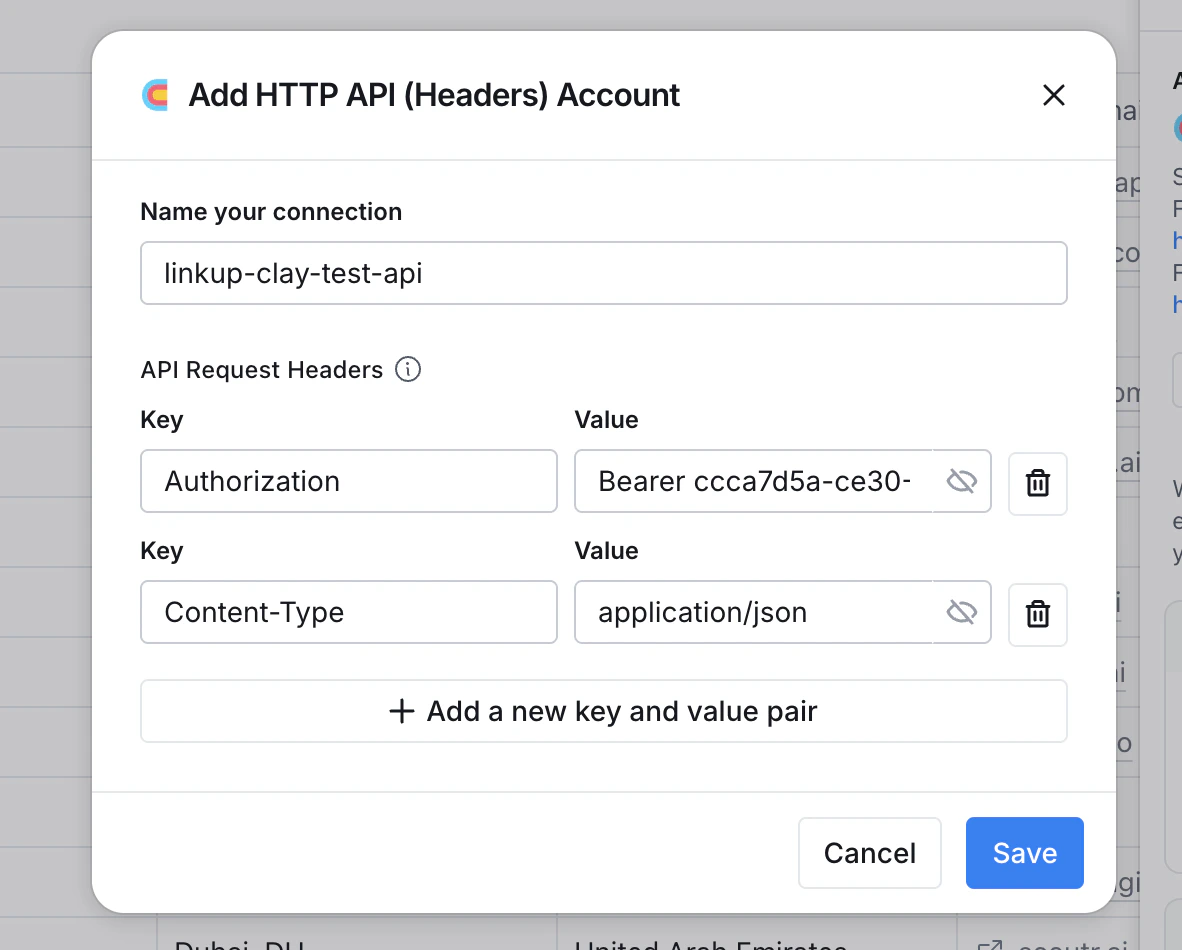
Let's first configure the *HTTP API (Headers) account* - this is how Linkup will authenticate you. In the *Account* section, select "Add account". You will see a box popping up, where you need to add two key/value pairs:
* `Authorization` / `Bearer {your API key}`
* `Content-Type` / `application/json`
Create a Linkup account for free to get your API key.
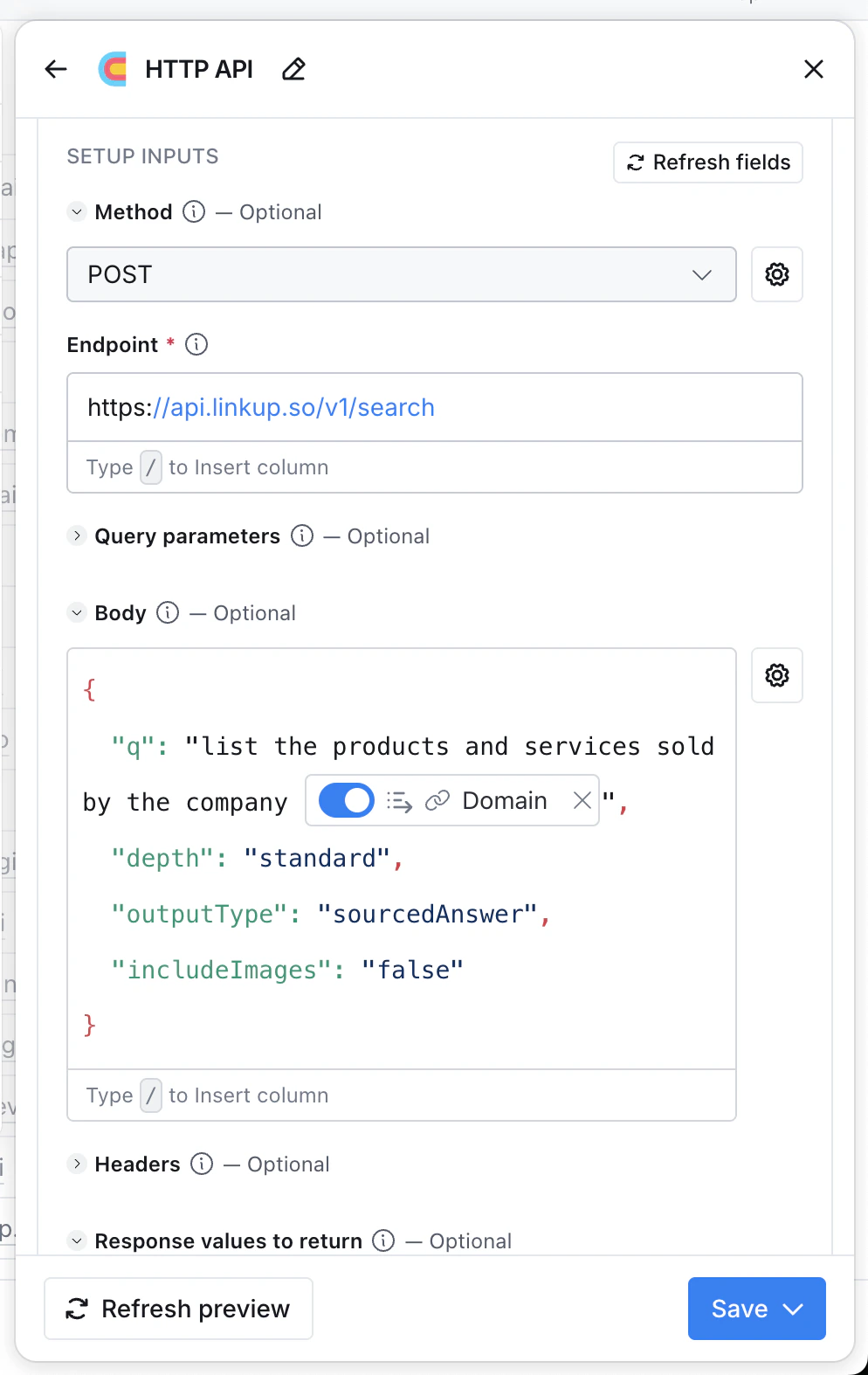
Once this is done, we'll configure the Method, Endpoint and Body.
To find the endpoint, head over to the [API Reference](https://docs.linkup.so/pages/documentation/endpoints/search/reference). You'll see the endpoint url is `https://api.linkup.so/v1/search`, using the *POST* method.
Then for the Body, you need to send the query parameters of the API (see the [API Reference](https://docs.linkup.so/pages/documentation/endpoints/search/reference) for more details on `outputType`, filters, and `depth`).
You can copy the configuration below, replacing "q" with your actual query:
```json theme={"system"}
{
"q": "your search query here",
"outputType": "sourcedAnswer",
"depth": "standard"
}
```
### 4. Call the API and create a new column for the results
You can then save and run the column directly from the table.
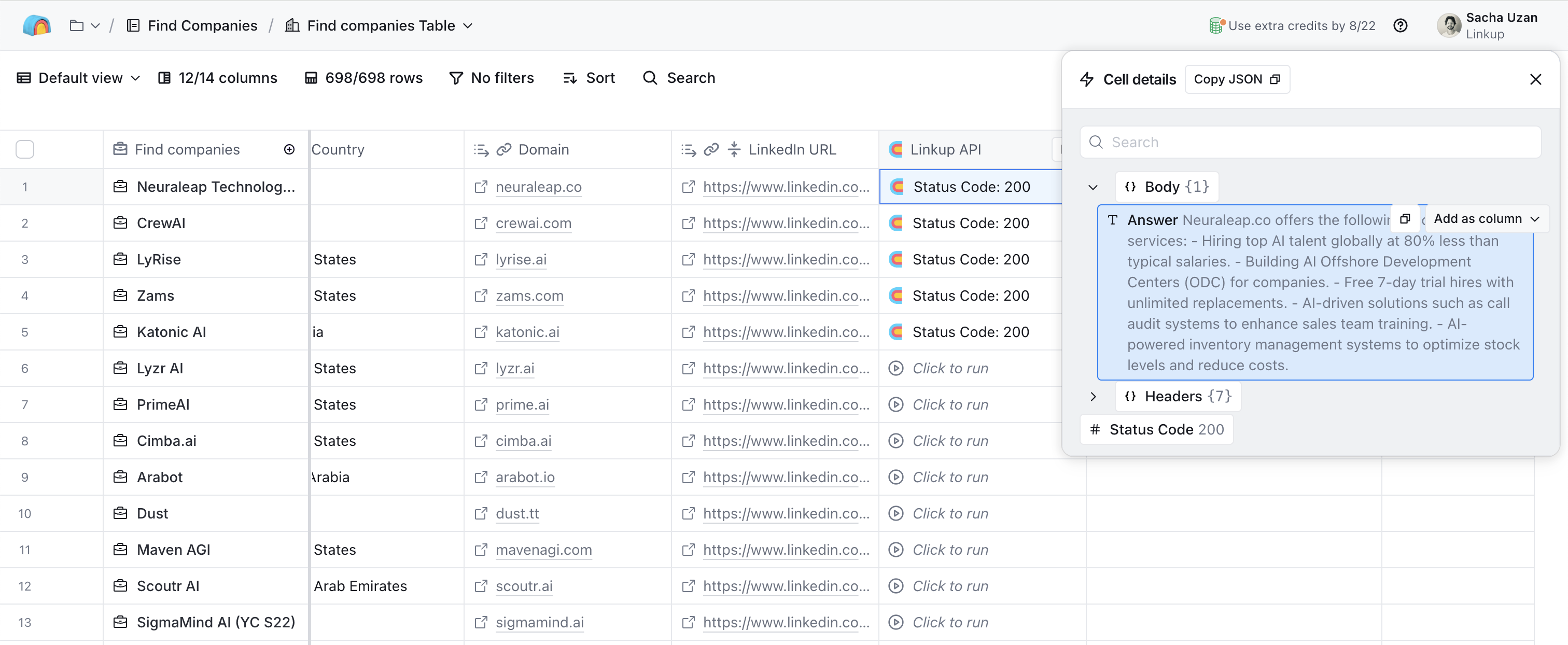
**Important**: This column will not get you the enriched data directly, but shows the API response. You need to open the API response and create a new column based on the field "answer", which is included in the response.
You now have your enrichment working!
### 5. Save the enrichment as a template and reuse it with different queries
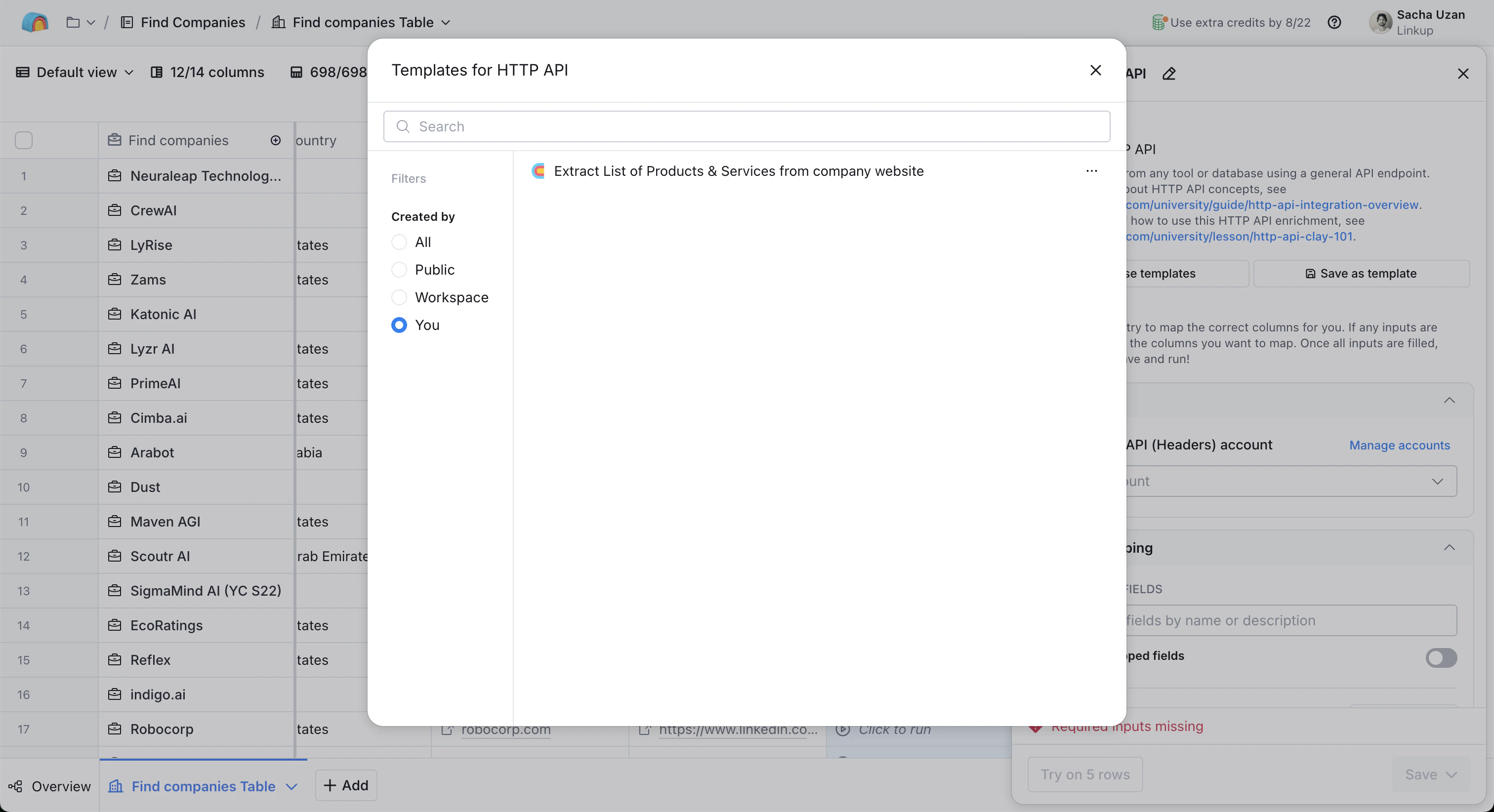
If you open the configuration panel of the HTTP API call, you can save the parameters as a new template, and then re-use this template in new columns. All you will have to change is your query.
\\
## Use Cases
**Company Intelligence & Research**
* Research any company based on its website or public information
* Find detailed information about customers, job positions, office locations
* Discover funding stages, technology stacks, and SOC-II compliance status
* Analyze competitive landscape and market positioning
**Lead Qualification & Scoring**
* Automate the research process to identify highly-qualified leads
* Gather contextual information that helps prioritize prospects
* Filter leads based on your ideal customer profile (ICP) criteria
**Sales Intelligence & Pre-call Research**
* Automatically gather facts about companies and contacts before sales calls
* Replace manual Googling with automated research
* Create more confident, relevant conversations with prospects
**Account-Based Marketing (ABM) Research**
* Find companies of particular sizes that use specific technologies
* Identify prospects that aren't in your CRM yet
* Expand your total addressable market (TAM) with targeted research
**Contact & Email Discovery**
* Obtain valid email addresses and contact information
* Research across various platforms and public sources
* Automate contact discovery in one streamlined process
**Competitor Analysis & Market Research**
* Analyze competitors and their market positioning
* Research industry trends and market opportunities
* Gather intelligence to inform your sales strategy
**Signal & Trigger Detection**
* Track key customer events and buying signals
* Monitor company changes like hiring sprees or funding announcements
* Identify technology adoptions that indicate sales opportunities
**Customer Success & Expansion Research**
* Research existing customers to identify expansion opportunities
* Analyze renewal risks and success patterns
* Monitor public activities and business changes for upsell signals
You are all set to use Linkup in your Clay workflows! Visit the [Concepts](/pages/documentation/endpoints/search/overview) page to learn more about the different Linkup parameters.
**Need help?** Email `support@linkup.so`, ping us on [Discord](https://discord.com/invite/9q9mCYJa86), or [talk to us](https://calendar.app.google/zNUZz7RxgMMk9pKW7).
 ### 2. Add HTTP API Enrichment
Click on "Add enrichment" and search for HTTP API.
### 2. Add HTTP API Enrichment
Click on "Add enrichment" and search for HTTP API.
 ### 3. Configure the HTTP API to call the Linkup API
After clicking on HTTP API, you will see the configuration sidebar opening.
### 3. Configure the HTTP API to call the Linkup API
After clicking on HTTP API, you will see the configuration sidebar opening.
 There are a few things we'll need to configure:
* **Endpoint & Header** (think of it as the address and name you would put on an envelope)
* **Body** (the actual content of the letter)
Let's first configure the *HTTP API (Headers) account* - this is how Linkup will authenticate you. In the *Account* section, select "Add account". You will see a box popping up, where you need to add two key/value pairs:
* `Authorization` / `Bearer {your API key}`
* `Content-Type` / `application/json`
There are a few things we'll need to configure:
* **Endpoint & Header** (think of it as the address and name you would put on an envelope)
* **Body** (the actual content of the letter)
Let's first configure the *HTTP API (Headers) account* - this is how Linkup will authenticate you. In the *Account* section, select "Add account". You will see a box popping up, where you need to add two key/value pairs:
* `Authorization` / `Bearer {your API key}`
* `Content-Type` / `application/json`
 Once this is done, we'll configure the Method, Endpoint and Body.
To find the endpoint, head over to the [API Reference](https://docs.linkup.so/pages/documentation/endpoints/search/reference). You'll see the endpoint url is `https://api.linkup.so/v1/search`, using the *POST* method.
Then for the Body, you need to send the query parameters of the API (see the [API Reference](https://docs.linkup.so/pages/documentation/endpoints/search/reference) for more details on `outputType`, filters, and `depth`).
You can copy the configuration below, replacing "q" with your actual query:
```json theme={"system"}
{
"q": "your search query here",
"outputType": "sourcedAnswer",
"depth": "standard"
}
```
Once this is done, we'll configure the Method, Endpoint and Body.
To find the endpoint, head over to the [API Reference](https://docs.linkup.so/pages/documentation/endpoints/search/reference). You'll see the endpoint url is `https://api.linkup.so/v1/search`, using the *POST* method.
Then for the Body, you need to send the query parameters of the API (see the [API Reference](https://docs.linkup.so/pages/documentation/endpoints/search/reference) for more details on `outputType`, filters, and `depth`).
You can copy the configuration below, replacing "q" with your actual query:
```json theme={"system"}
{
"q": "your search query here",
"outputType": "sourcedAnswer",
"depth": "standard"
}
```
 ### 4. Call the API and create a new column for the results
You can then save and run the column directly from the table.
**Important**: This column will not get you the enriched data directly, but shows the API response. You need to open the API response and create a new column based on the field "answer", which is included in the response.
### 4. Call the API and create a new column for the results
You can then save and run the column directly from the table.
**Important**: This column will not get you the enriched data directly, but shows the API response. You need to open the API response and create a new column based on the field "answer", which is included in the response.
 You now have your enrichment working!
### 5. Save the enrichment as a template and reuse it with different queries
If you open the configuration panel of the HTTP API call, you can save the parameters as a new template, and then re-use this template in new columns. All you will have to change is your query.
You now have your enrichment working!
### 5. Save the enrichment as a template and reuse it with different queries
If you open the configuration panel of the HTTP API call, you can save the parameters as a new template, and then re-use this template in new columns. All you will have to change is your query.
 \\
\\
 ## Use Cases
**Company Intelligence & Research**
* Research any company based on its website or public information
* Find detailed information about customers, job positions, office locations
* Discover funding stages, technology stacks, and SOC-II compliance status
* Analyze competitive landscape and market positioning
**Lead Qualification & Scoring**
* Automate the research process to identify highly-qualified leads
* Gather contextual information that helps prioritize prospects
* Filter leads based on your ideal customer profile (ICP) criteria
**Sales Intelligence & Pre-call Research**
* Automatically gather facts about companies and contacts before sales calls
* Replace manual Googling with automated research
* Create more confident, relevant conversations with prospects
**Account-Based Marketing (ABM) Research**
* Find companies of particular sizes that use specific technologies
* Identify prospects that aren't in your CRM yet
* Expand your total addressable market (TAM) with targeted research
**Contact & Email Discovery**
* Obtain valid email addresses and contact information
* Research across various platforms and public sources
* Automate contact discovery in one streamlined process
**Competitor Analysis & Market Research**
* Analyze competitors and their market positioning
* Research industry trends and market opportunities
* Gather intelligence to inform your sales strategy
**Signal & Trigger Detection**
* Track key customer events and buying signals
* Monitor company changes like hiring sprees or funding announcements
* Identify technology adoptions that indicate sales opportunities
**Customer Success & Expansion Research**
* Research existing customers to identify expansion opportunities
* Analyze renewal risks and success patterns
* Monitor public activities and business changes for upsell signals
You are all set to use Linkup in your Clay workflows! Visit the [Concepts](/pages/documentation/endpoints/search/overview) page to learn more about the different Linkup parameters.
## Use Cases
**Company Intelligence & Research**
* Research any company based on its website or public information
* Find detailed information about customers, job positions, office locations
* Discover funding stages, technology stacks, and SOC-II compliance status
* Analyze competitive landscape and market positioning
**Lead Qualification & Scoring**
* Automate the research process to identify highly-qualified leads
* Gather contextual information that helps prioritize prospects
* Filter leads based on your ideal customer profile (ICP) criteria
**Sales Intelligence & Pre-call Research**
* Automatically gather facts about companies and contacts before sales calls
* Replace manual Googling with automated research
* Create more confident, relevant conversations with prospects
**Account-Based Marketing (ABM) Research**
* Find companies of particular sizes that use specific technologies
* Identify prospects that aren't in your CRM yet
* Expand your total addressable market (TAM) with targeted research
**Contact & Email Discovery**
* Obtain valid email addresses and contact information
* Research across various platforms and public sources
* Automate contact discovery in one streamlined process
**Competitor Analysis & Market Research**
* Analyze competitors and their market positioning
* Research industry trends and market opportunities
* Gather intelligence to inform your sales strategy
**Signal & Trigger Detection**
* Track key customer events and buying signals
* Monitor company changes like hiring sprees or funding announcements
* Identify technology adoptions that indicate sales opportunities
**Customer Success & Expansion Research**
* Research existing customers to identify expansion opportunities
* Analyze renewal risks and success patterns
* Monitor public activities and business changes for upsell signals
You are all set to use Linkup in your Clay workflows! Visit the [Concepts](/pages/documentation/endpoints/search/overview) page to learn more about the different Linkup parameters.