> ## Documentation Index
> Fetch the complete documentation index at: https://docs.linkup.so/llms.txt
> Use this file to discover all available pages before exploring further.
# Xpander
> Integrate Linkup with Xpander to enhance your AI workflows
## Overview
Linkup can be used in [Xpander.ai](http://Xpander.ai) to get contextual information from the internet in a workflow.
## Installation
1. Open your Xpander account.
2. Go to the **Agents** tab.
3. Click **New Agent**
4. Name your agent (e.g. “Linkup Agent”)
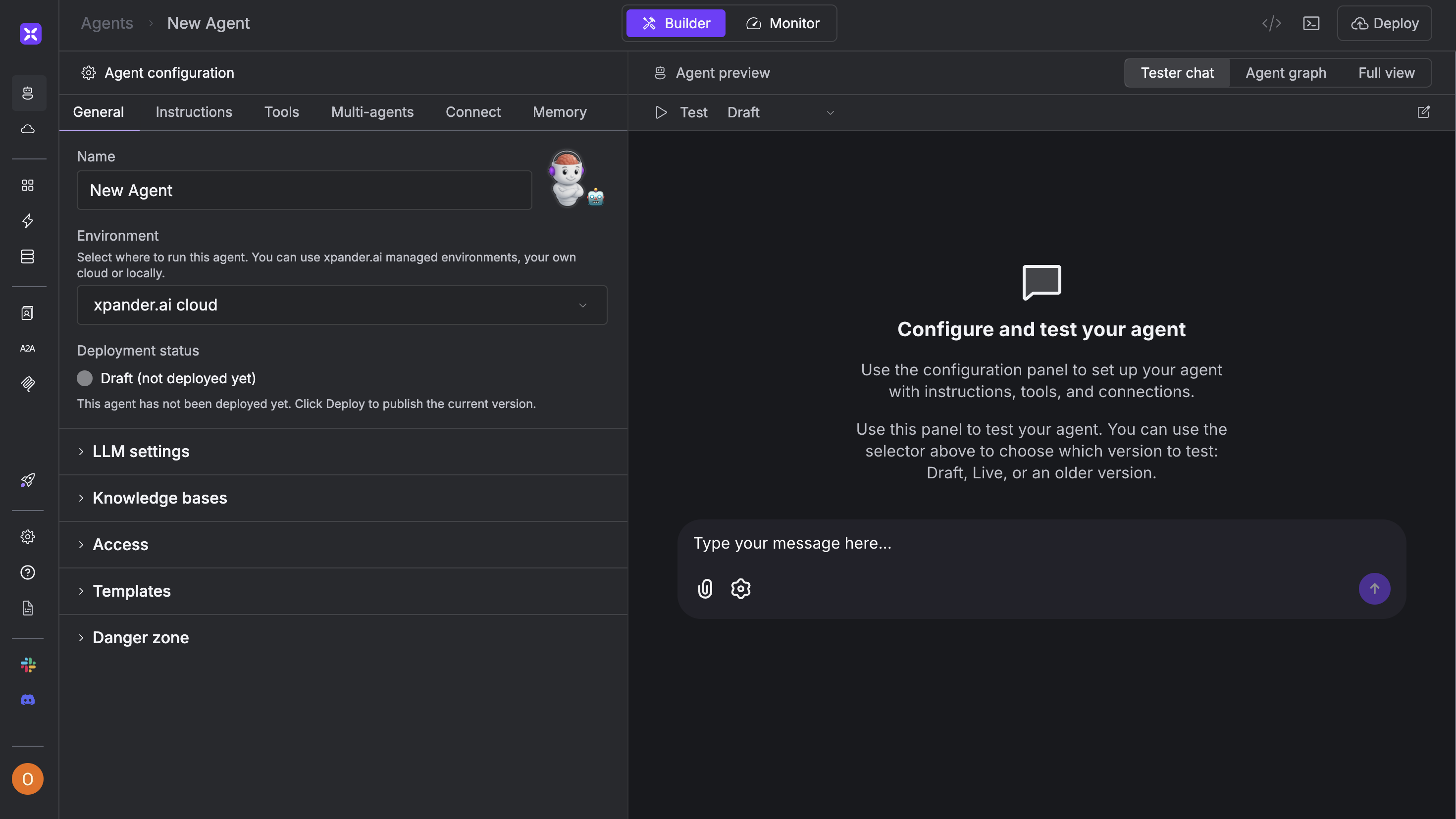 1. Inside the agent editor, click on the **Tools** tab
2. Click **+ Add Tools**
1. Inside the agent editor, click on the **Tools** tab
2. Click **+ Add Tools**
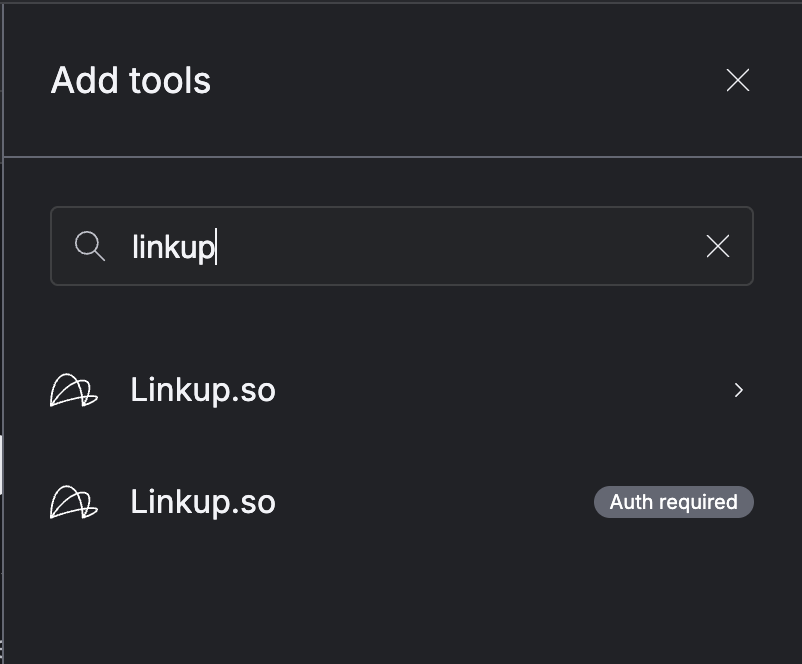
 1. From the list, choose [**Linkup.so**](http://Linkup.so) (auth required)
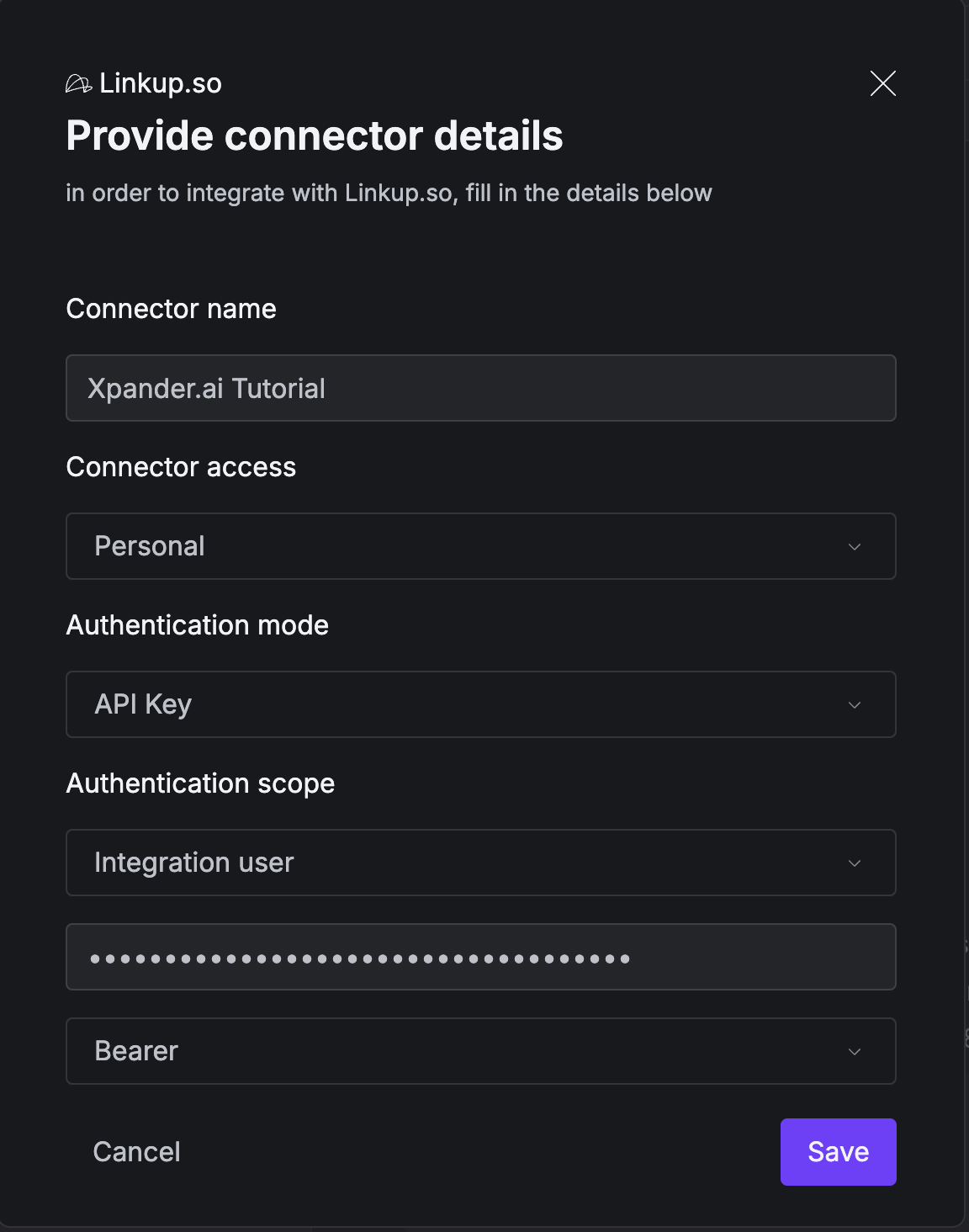
 2. Choose “API Key” under Authentication Mode
3. Enter your Linkup API Key
4. Choose “Bearer”
2. Choose “API Key” under Authentication Mode
3. Enter your Linkup API Key
4. Choose “Bearer”
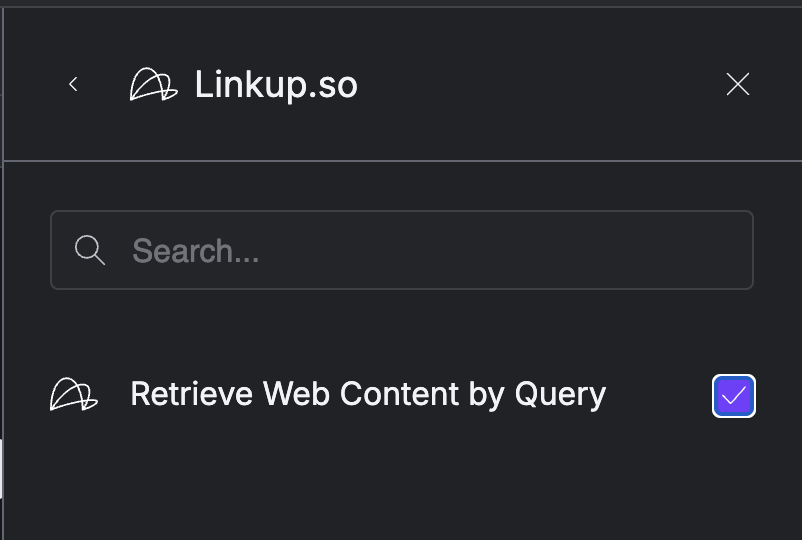
 5. Select the action: `Retrieve Web Content by Query`
 6. Click **Add**
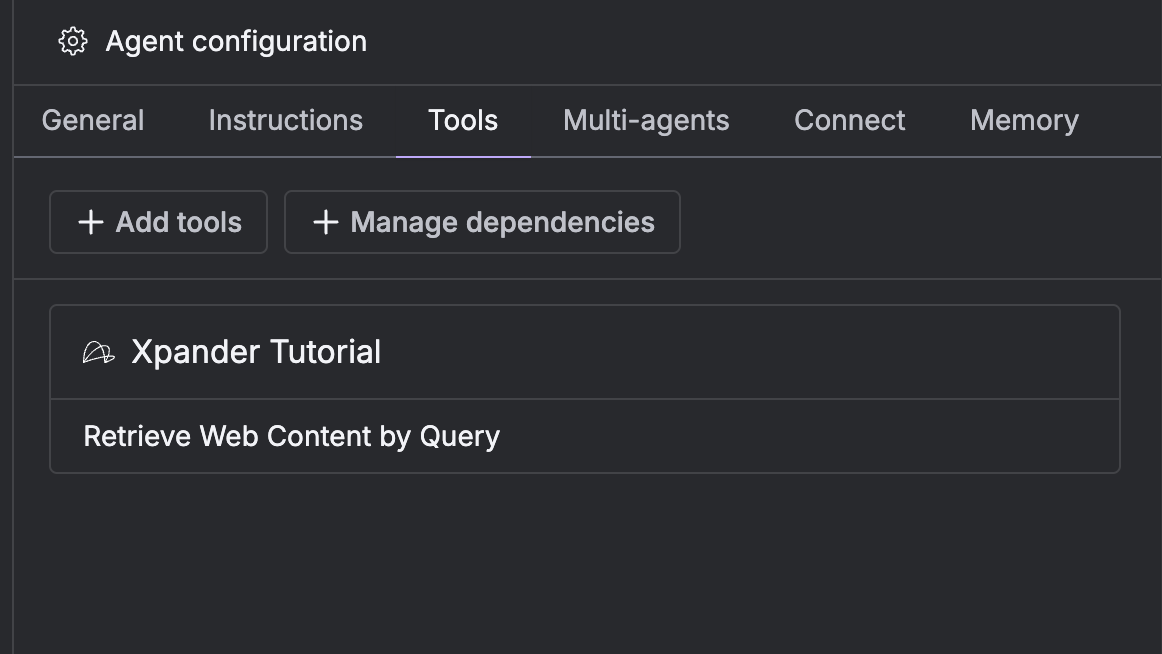
1. Linkup should now appear in your Tools list
2. You don’t need to connect it to other tools manually
3. Xpander AI will automatically detect when to use Linkup
6. Click **Add**
1. Linkup should now appear in your Tools list
2. You don’t need to connect it to other tools manually
3. Xpander AI will automatically detect when to use Linkup
 You are all set to use Linkup in your Xpander workflow! Visit the [Concepts](/pages/documentation/endpoints/search/overview) page to learn more about the different Linkup parameters.
**Need help?** Email `support@linkup.so`, ping us on [Discord](https://discord.com/invite/9q9mCYJa86), or [talk to us](https://calendar.app.google/zNUZz7RxgMMk9pKW7).
You are all set to use Linkup in your Xpander workflow! Visit the [Concepts](/pages/documentation/endpoints/search/overview) page to learn more about the different Linkup parameters.
**Need help?** Email `support@linkup.so`, ping us on [Discord](https://discord.com/invite/9q9mCYJa86), or [talk to us](https://calendar.app.google/zNUZz7RxgMMk9pKW7).