

Overview
Linkup integrates with Xpander.ai to give your agents access to real-time web data. This tutorial walks through how to build a meeting preparation agent that uses that data to generate useful briefings.Configuration steps
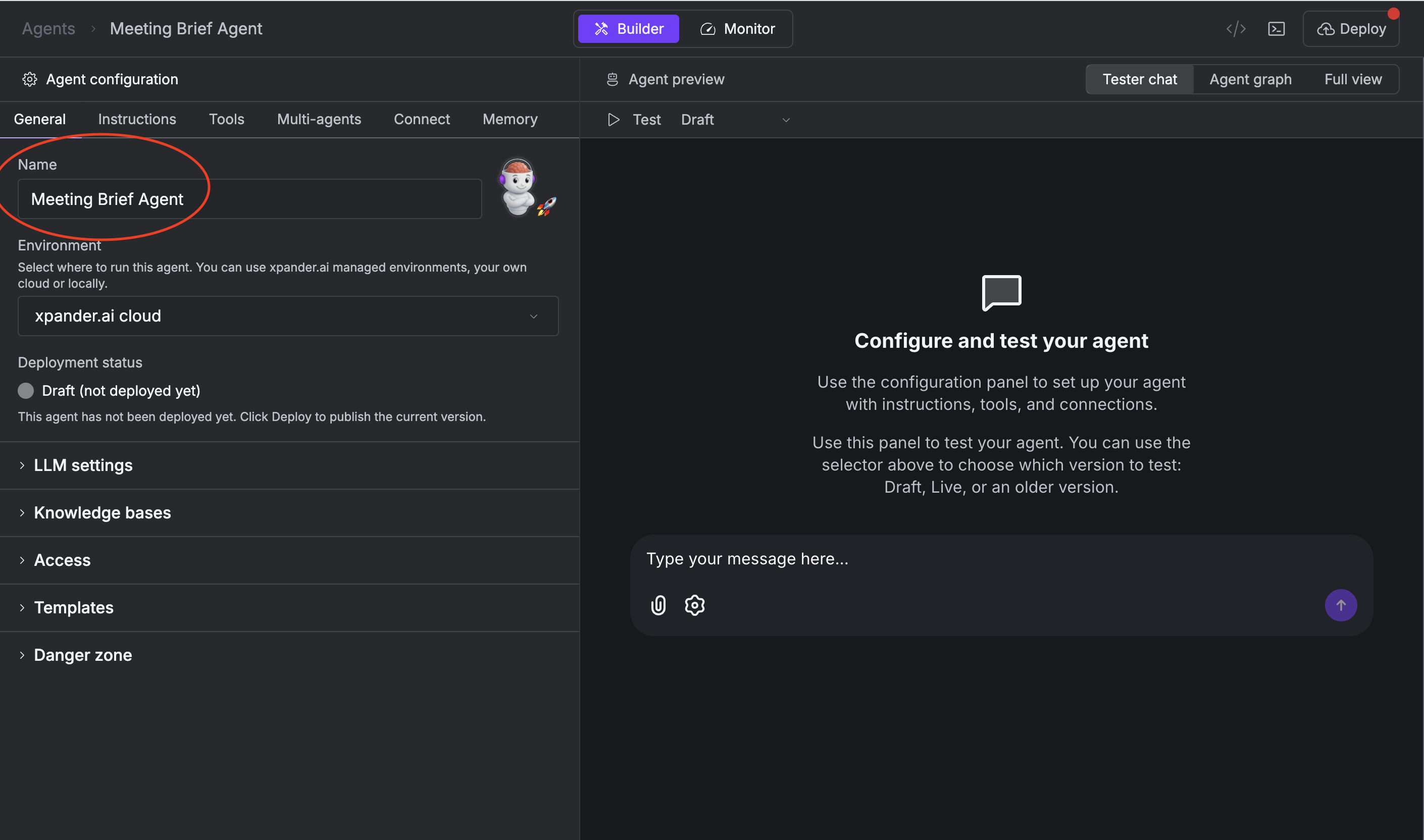
Create a New Agent
- Go to the Agents tab in Xpander.
- Click “New Agent”
-
Name it something like “Meeting Brief Agent”
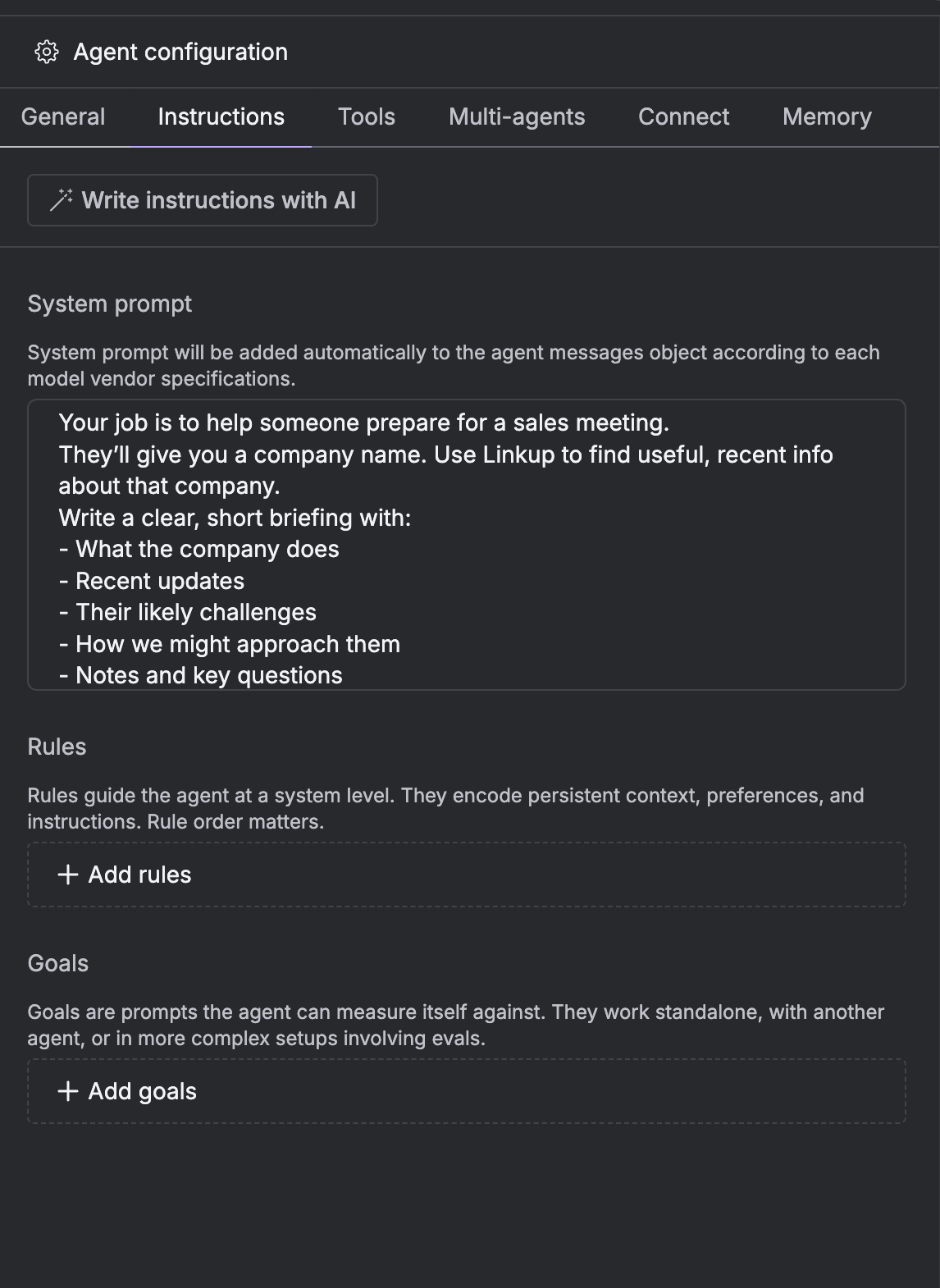
- Paste the following into the Instructions section:
Add the Linkup Tool
-
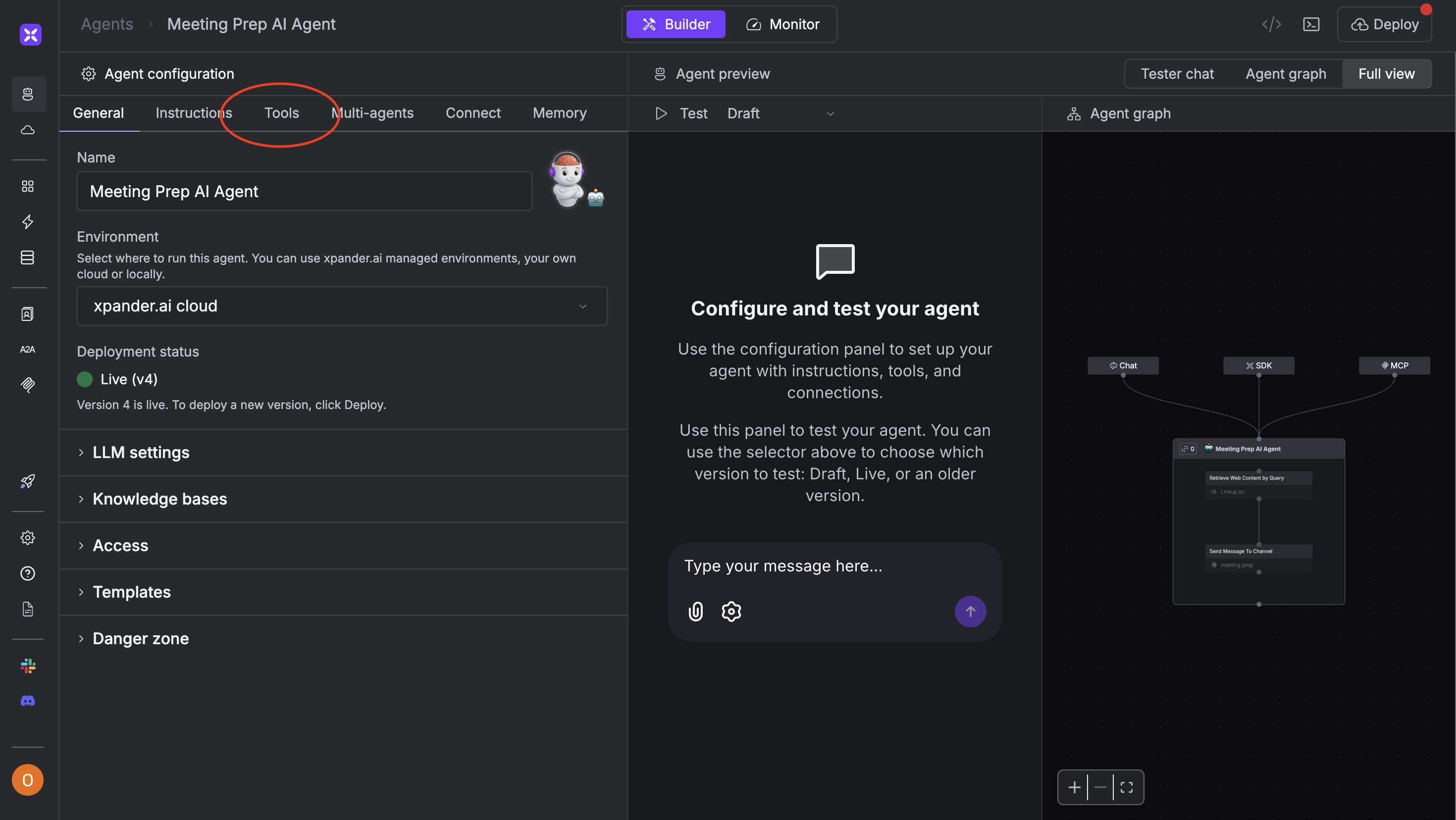
Go to the Tools section in the agent builder
-
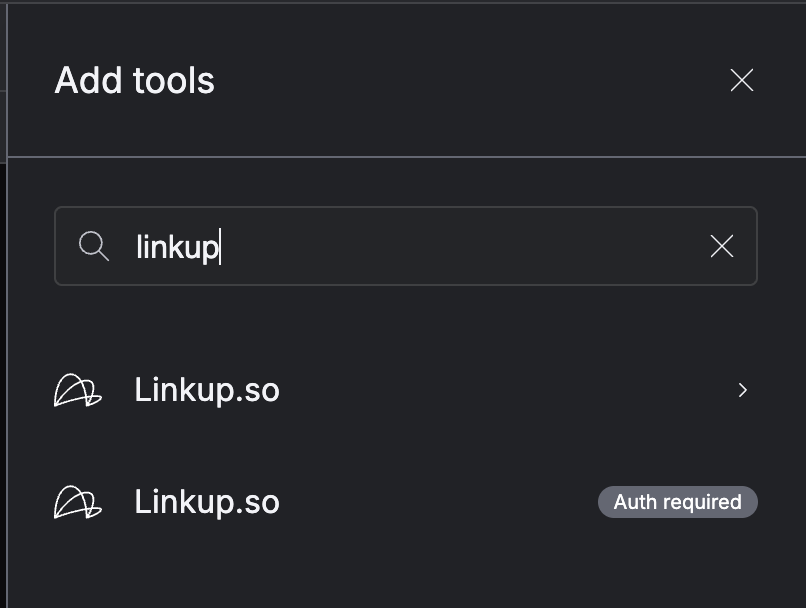
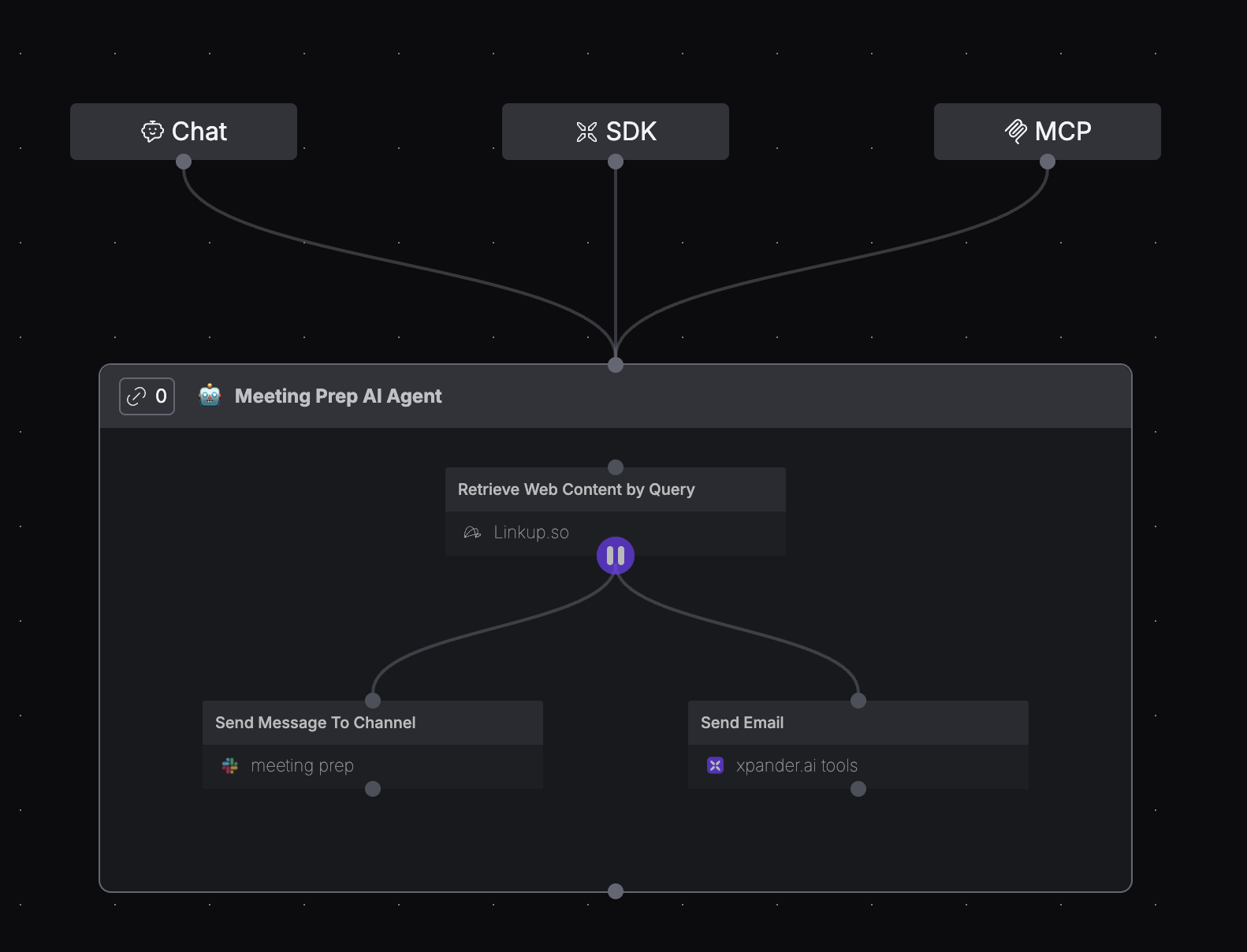
Click “Add Tool” and select Linkup.so
-
Choose the “Retrieve Web Content by Query” option

- Under “Prompt Input Mapping”, link the user’s input (e.g. company name) to the Linkup query
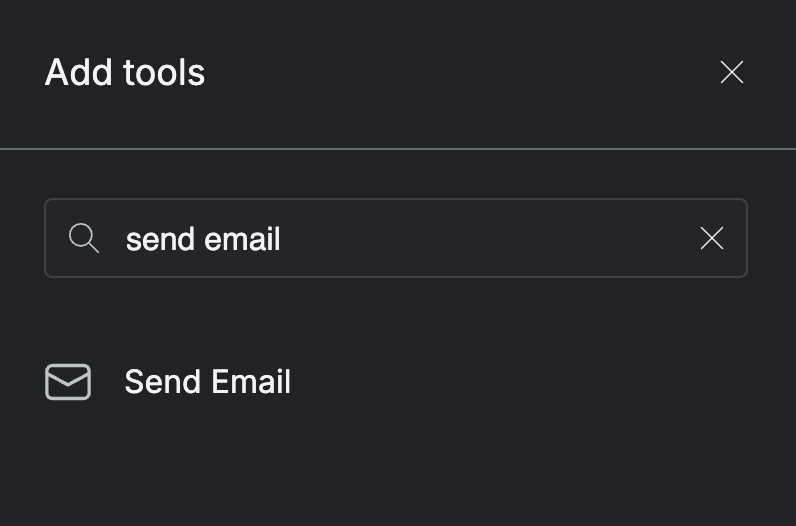
Add 'Send Email' Step
- Click the ”+” button in the agent editor
- Select Send Email tool
- You don’t need to wire it to previous steps
- Make sure your prompt includes:
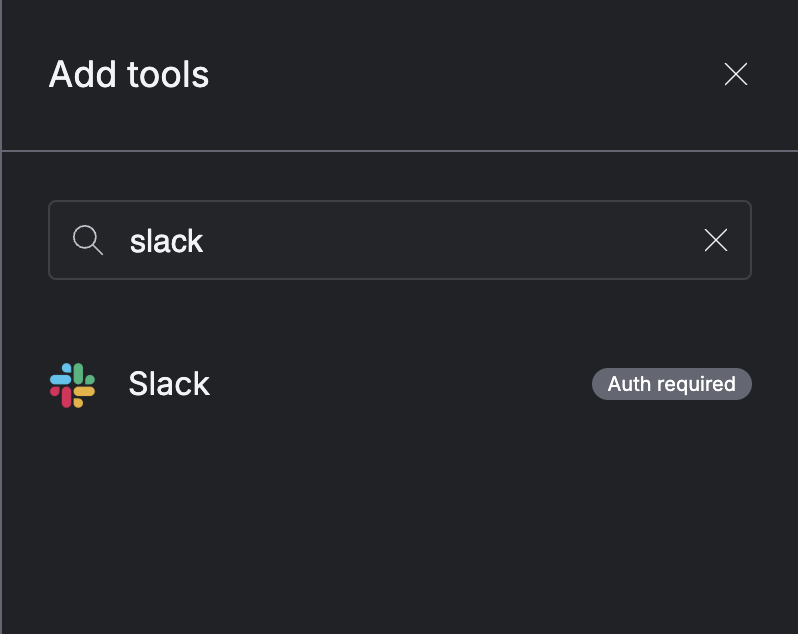
Add 'Send Slack Message' Step
- Click the ”+” button again
-
Select Send Slack Message
-
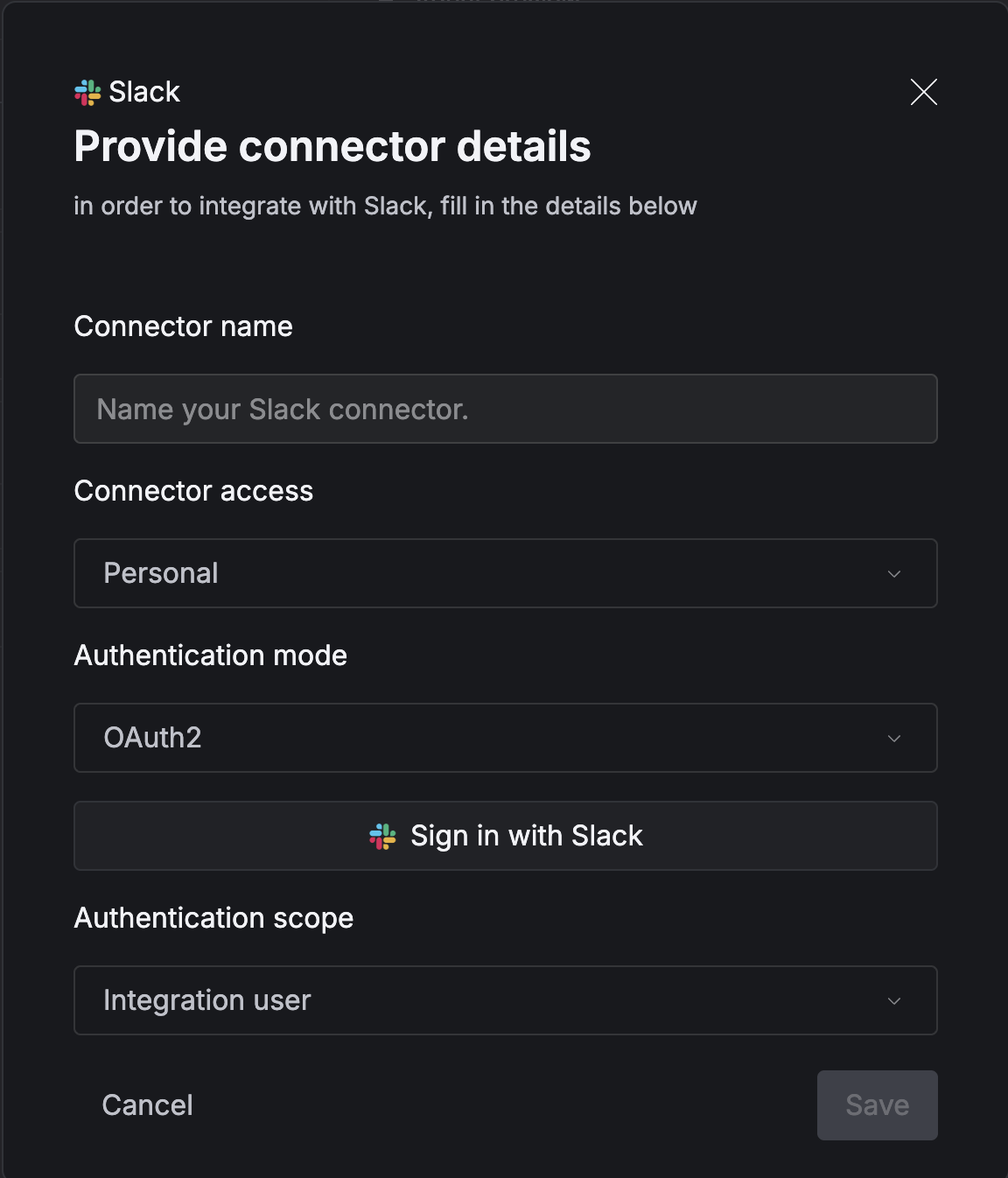
Configure credentials with OAuth2 and log in to Slack
- Include this in the prompt:
Test with a Sample Prospect
Company: Airtable
Name: Daniel Kim
Title: Director of Product Strategy
Email: daniel.kim@airtable.comType into chat: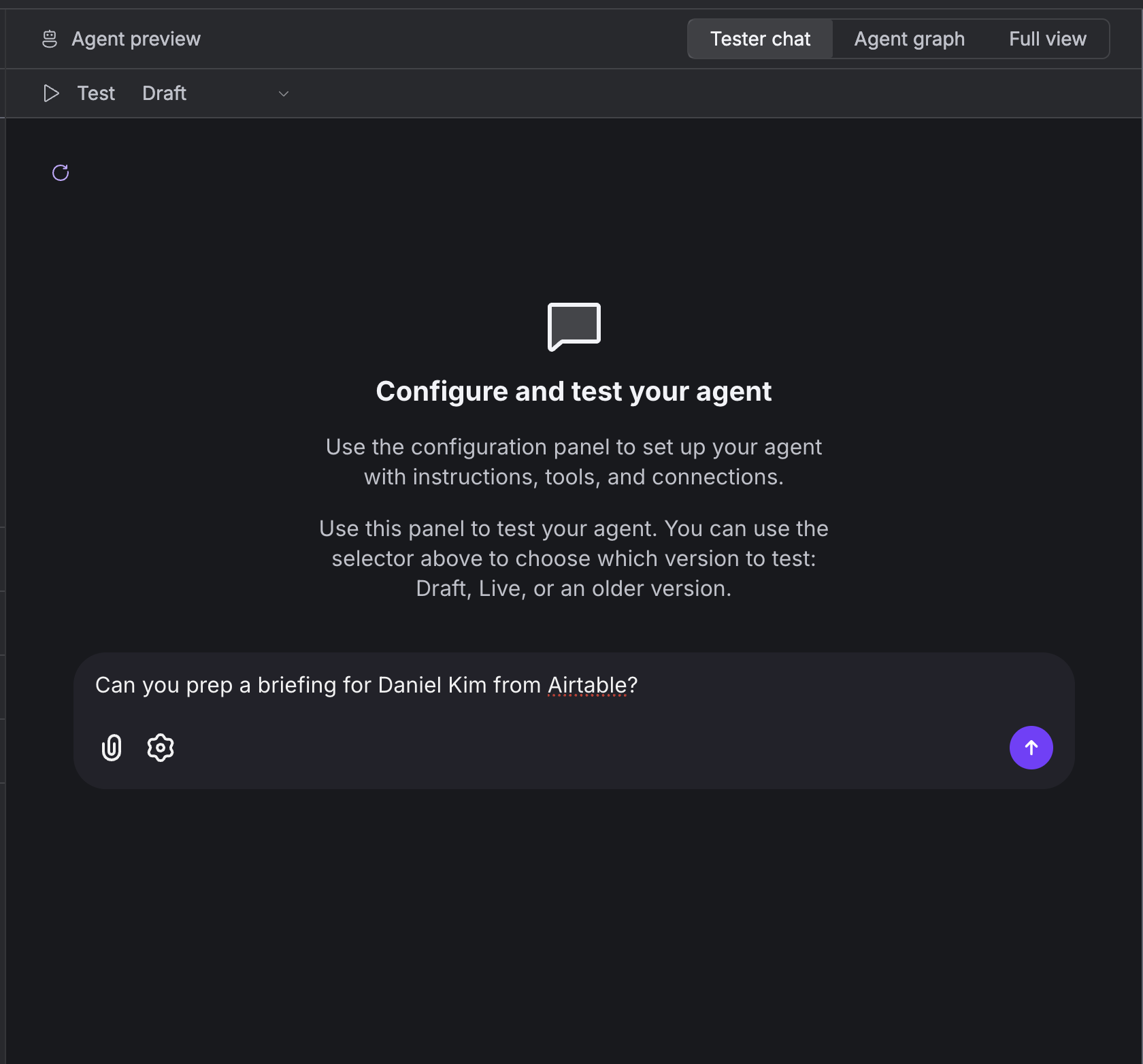
Can you prep a briefing for Daniel Kim from Airtable?
Need help? Email
support@linkup.so, ping us on Discord, or talk to us.