

Overview
Linkup can be used in Xpander.ai to get contextual information from the internet in a workflow.Installation
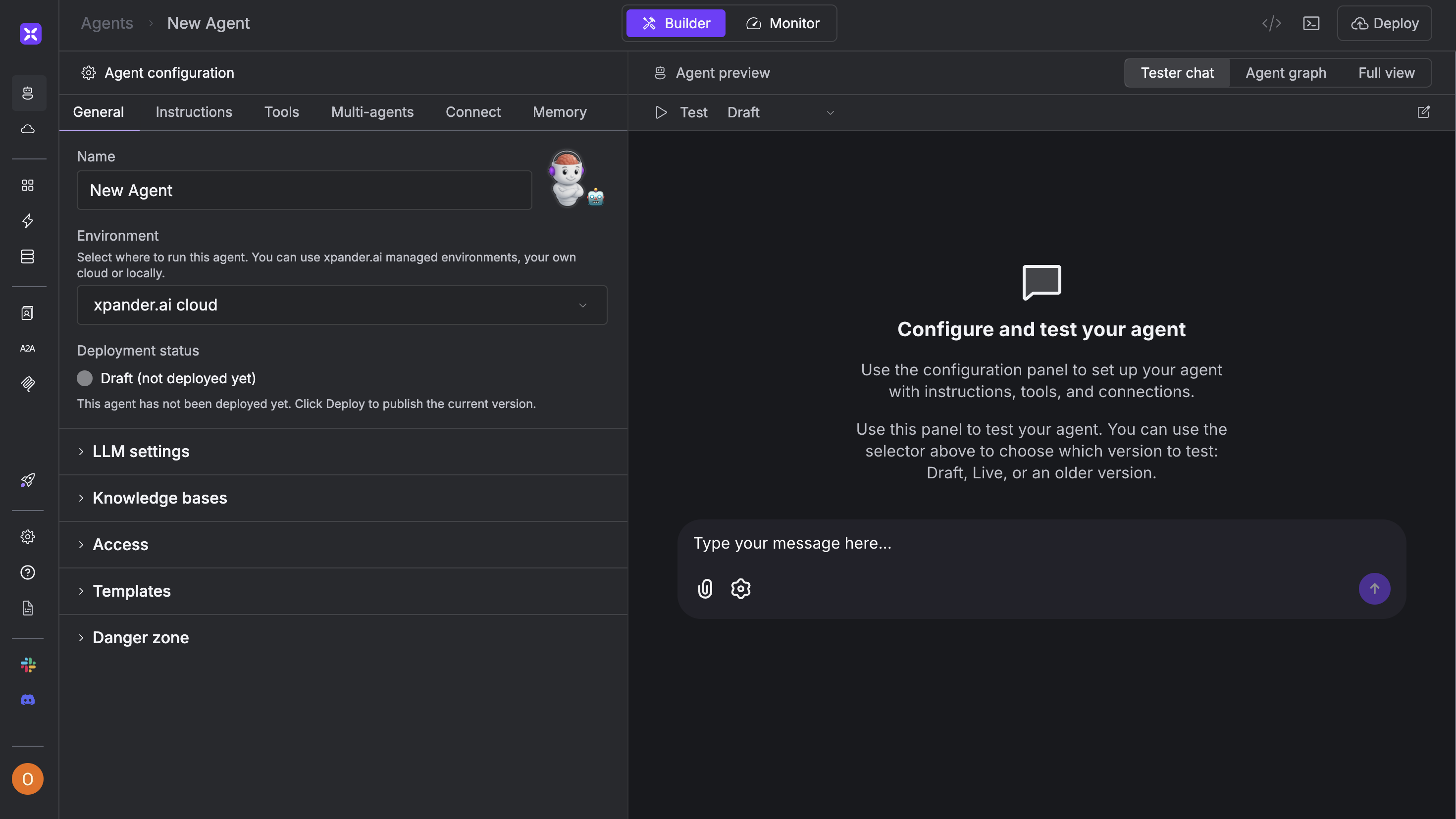
Open Xpander
- Open your Xpander account.
- Go to the Agents tab.
- Click New Agent
-
Name your agent (e.g. “Linkup Agent”)

Select Linkup
-
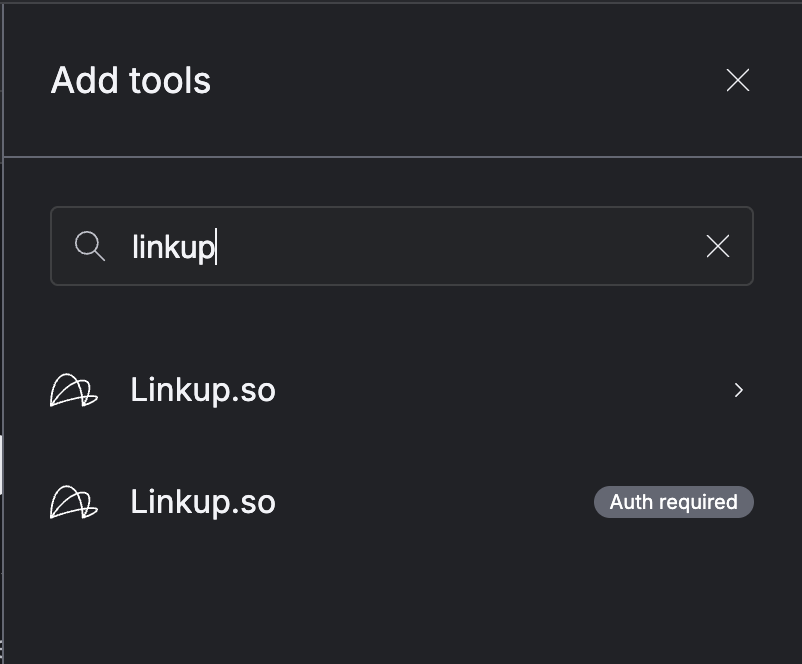
From the list, choose Linkup.so (auth required)
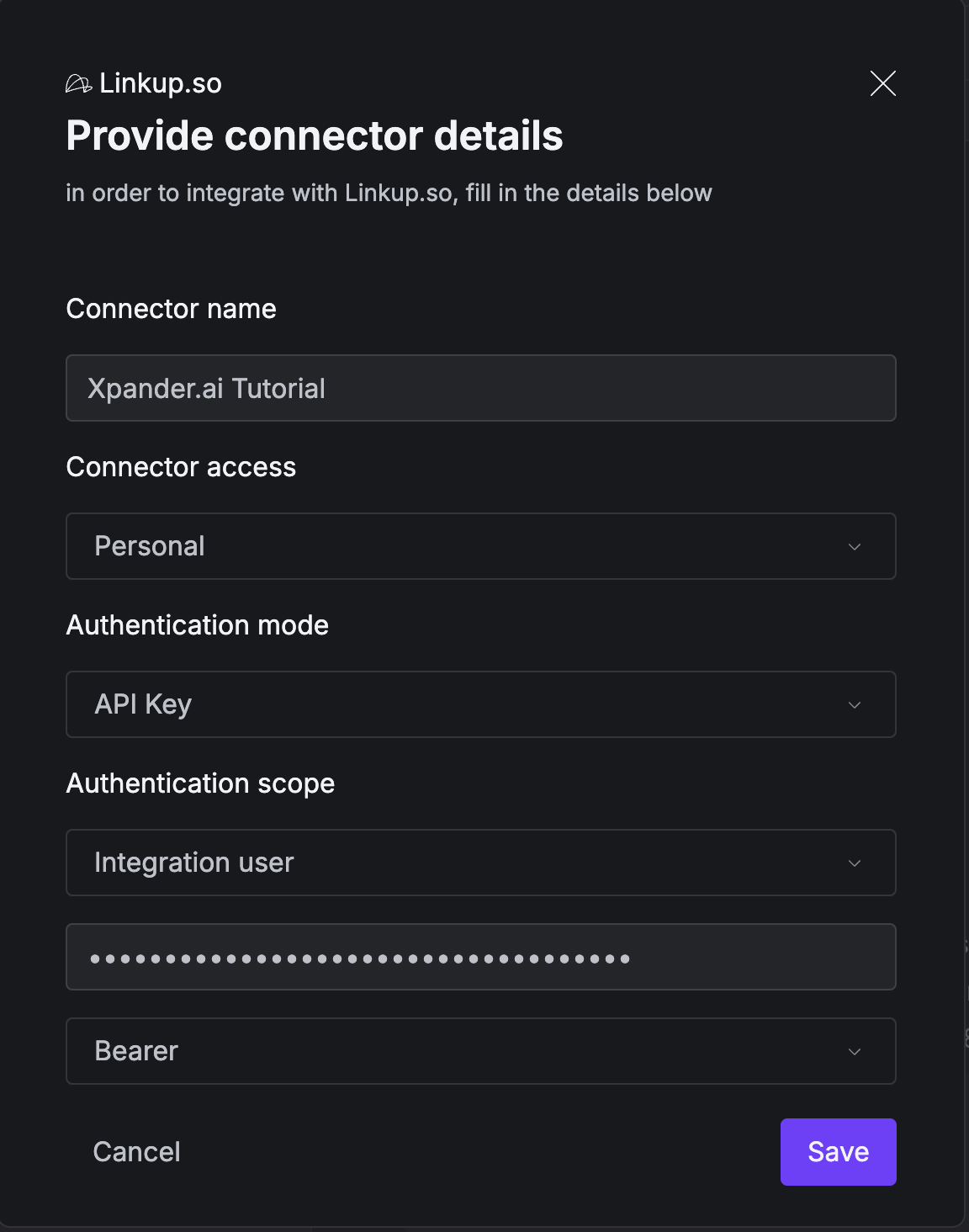
- Choose “API Key” under Authentication Mode
- Enter your Linkup API Key
-
Choose “Bearer”
-
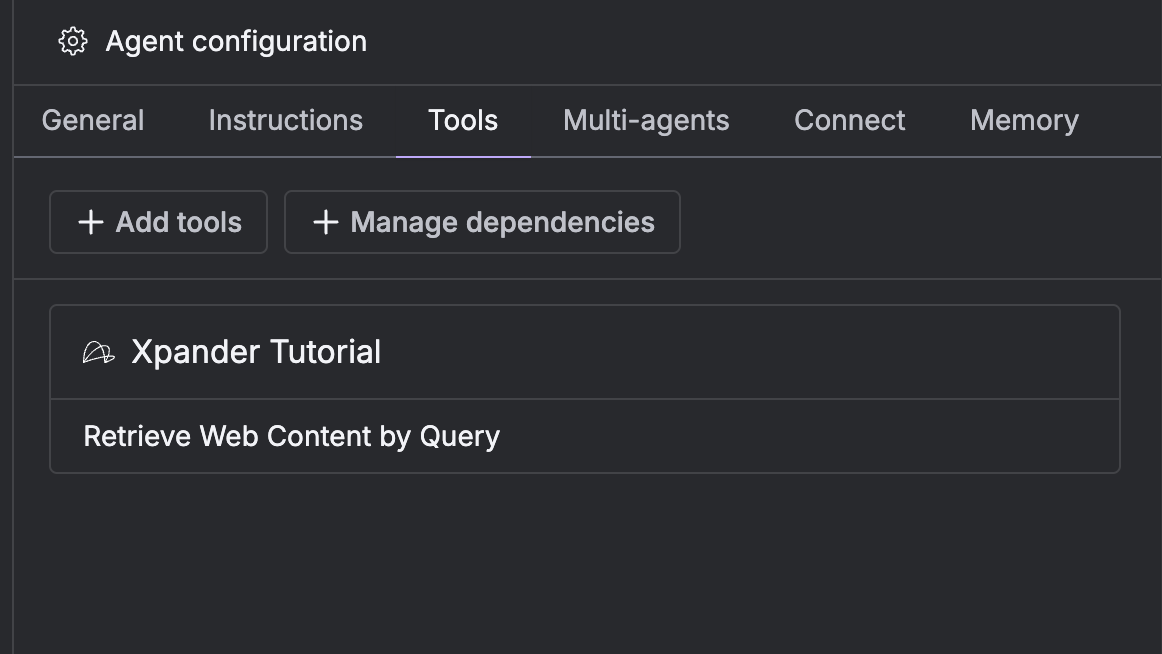
Select the action:
Retrieve Web Content by Query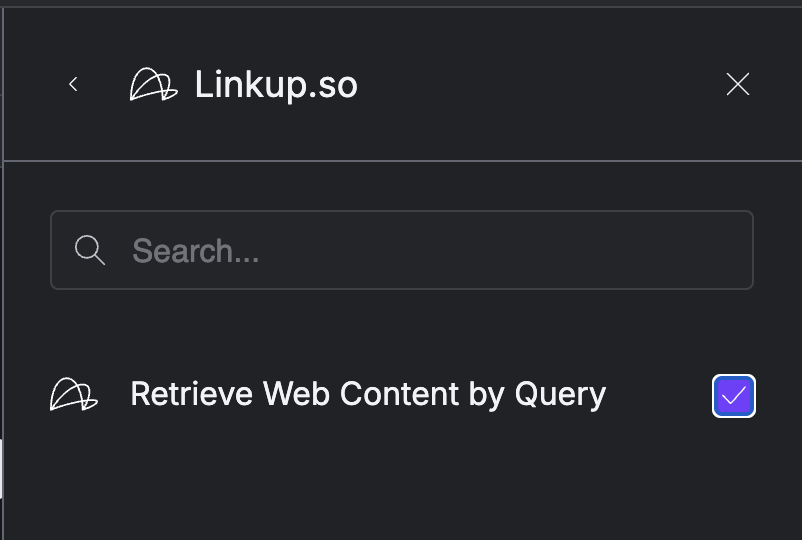
- Click Add
Facing issues? Reach out to our engineering team at support@linkup.so or via our Discord or book a 15 minutes call with a member of our technical team.